



Battery Life

How to optimize your battery to fit your needs.

How to maximize your battery life


Be ready for every adventure with these top 4 pro tips.


Charge your watch every night

  • Make it a habit! Plug the watch in before bed.
  • Make charging a breeze with the Cosmo LaunchPad Charging Stand

Adjust background GPS update frequency

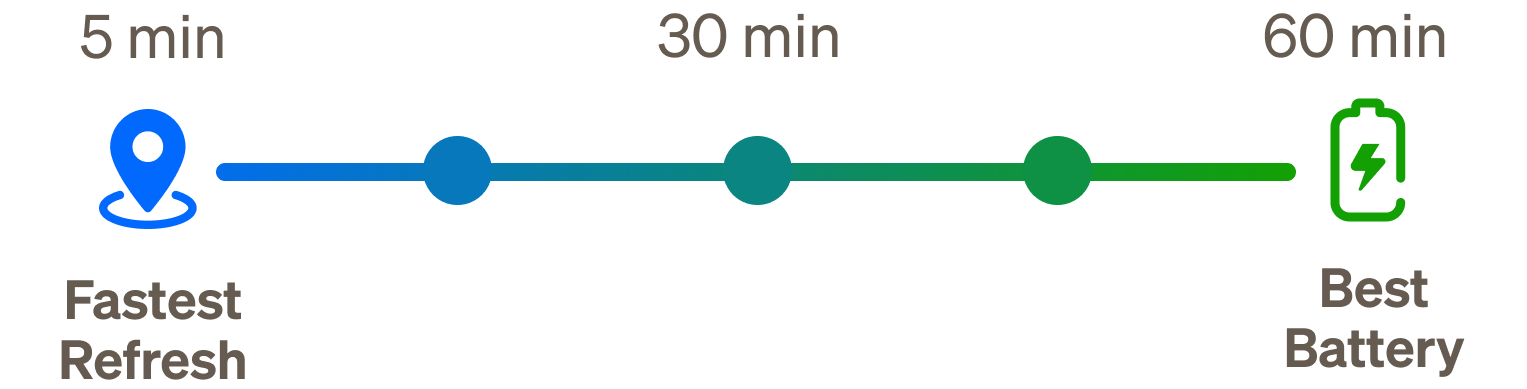
While you can always tap on your child’s icon on the map to refresh location, one way to save battery is to reduce how often location is updated in the background when you're not checking the app. 

  • How it works: your watch will automatically update location in the background at set periods.
  • Manage settings: To change how often location is updated in the background, tap the ⚙ (settings) icon above the map → Location Settings. 

More frequent updates will drain the battery more quickly, but will keep their location most up to date, where less frequent updates will give you the longest battery life. You can change this setting anytime. 

Limit use of active tracking

This feature gives you real-time tracking with updates every 5-10 seconds. Use this feature when you need to actively monitor your child’s location and deactivate once it’s not needed.

Adjust screen settings

Increase battery life on your watch by adjusting screen brightness and awake periods.

On the watch settings (⚙ app icon) > Device > Display > Screen Brightness / Screen Timeout settings

Why does my battery last less than 18 hours?

There are a variety of reasons your battery might not be lasting a full day. Most common reasons include: 

  • Low/poor cellular coverage (this causes the watch to have to work harder searching for signal and drains battery twice as fast), 
  • High usage of features like games, music, or above average time calling/texting, etc.
  • High usage of Active Tracking (real time) or background location settings frequent updates on background location updates
  • Screen brightness or always-on display settings

How often do background location updates happen by default?

The default is every ~30 minutes. But you can adjust in the parent app to less frequent updates (45-60 min) to increase battery life

Does Active Tracking drain battery much faster?

Yes—on JrTrack 5, Active Tracking updates every 10 seconds, which uses significantly more battery. It’s intended for short periods of time.

Can I still receive SafeZone alerts with less frequent updates?

Yes. SafeZone notifications will occur at set intervals when background location updates happen. If you need more frequent updates to monitor more closely, simply adjust these settings in the Parent App (⚙ (settings) icon above the map → Location Settings.) To optimize battery life, set background updates to every 45-60 minutes.