
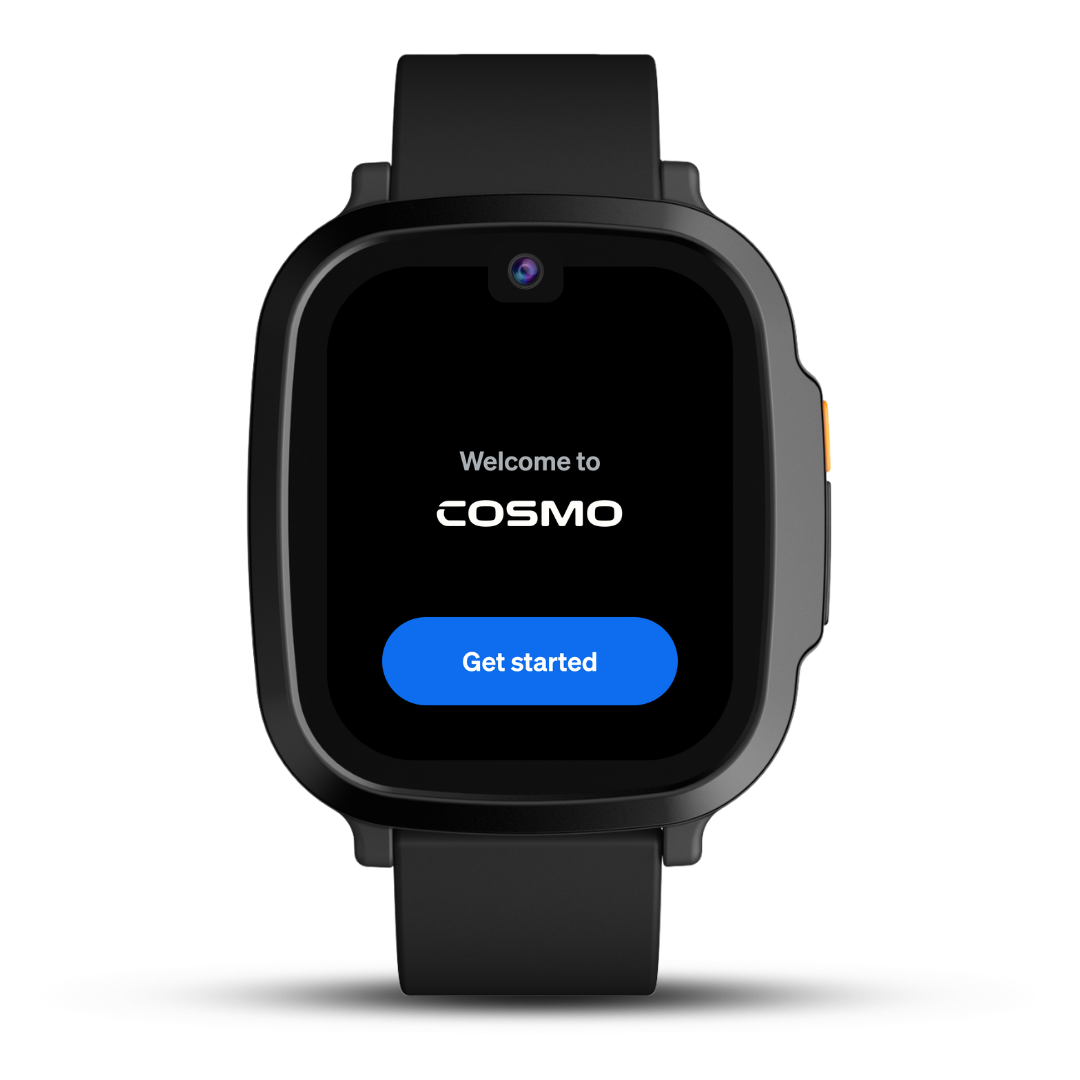
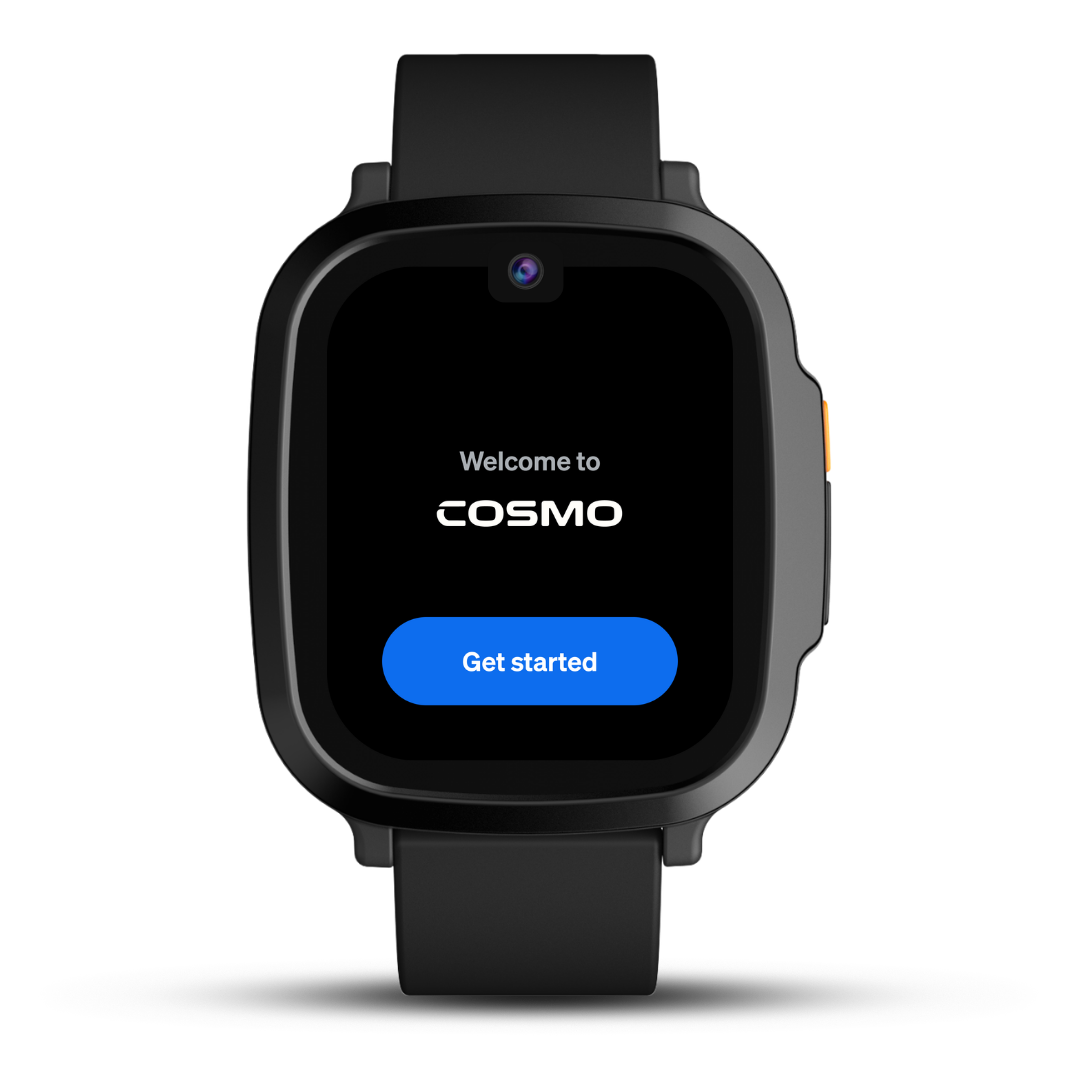
Power On Your Device
- Unbox your Cosmo test device.
- Power on the watch by pressing and holding the power button.
- Follow the on-screen setup instructions.
- Ensure all required software updates complete successfully (note: this may take a few minutes)
App download & Account Setup
iOS (Apple)
- You should have received an email from TestFlight, open it on your iOS device and click the View in Testflight link.
- In TestFlight, redeem the invite code to start testing.
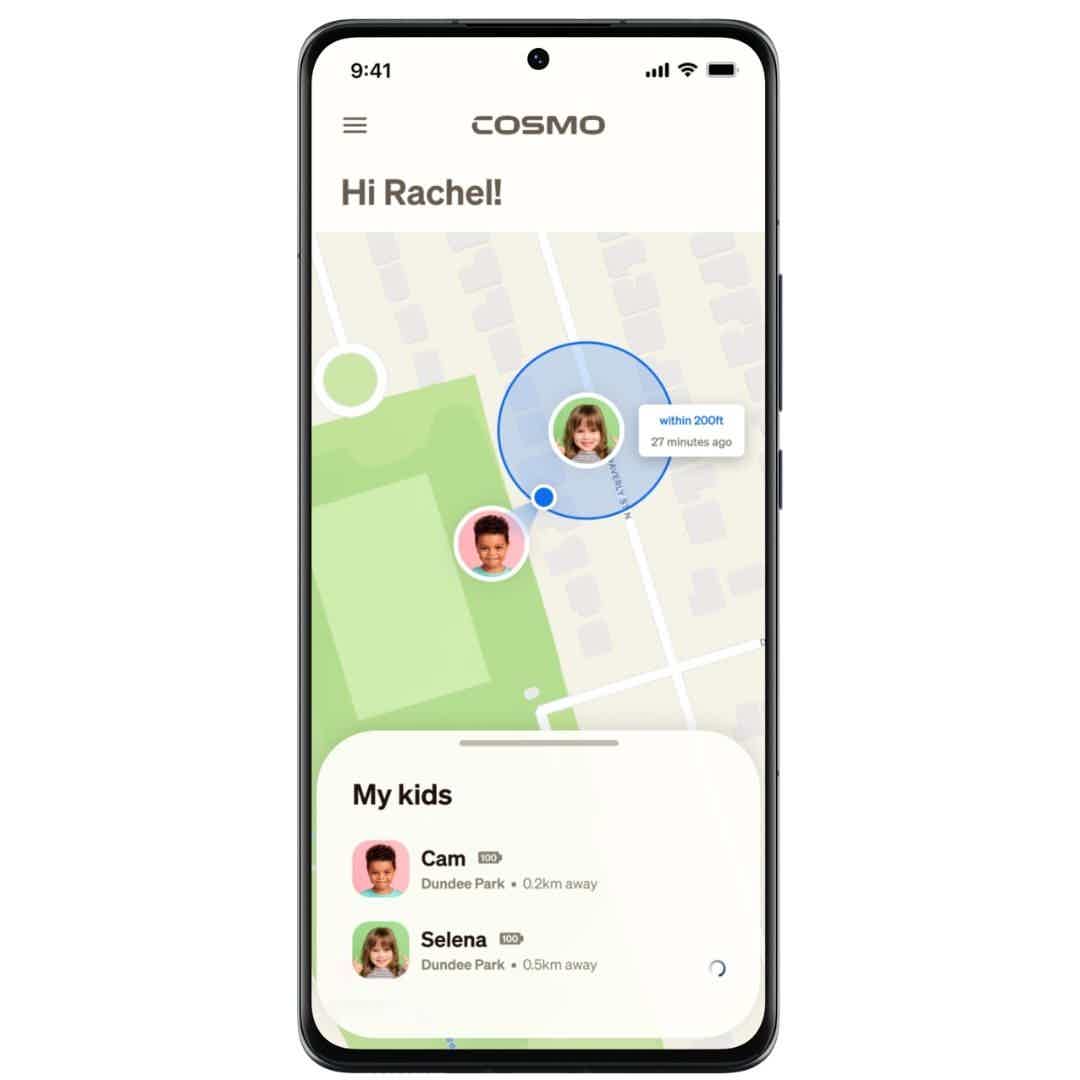
Login & Pair
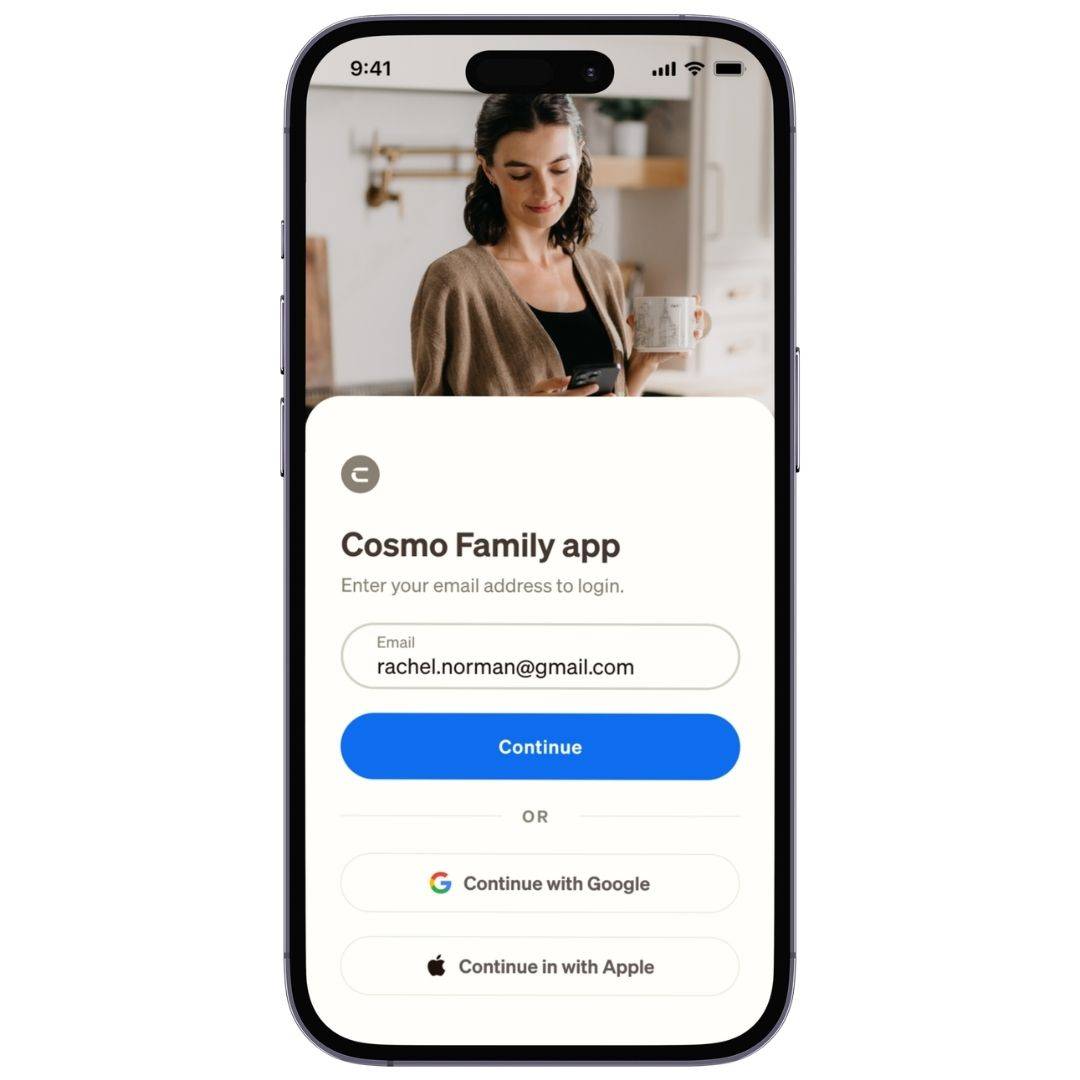
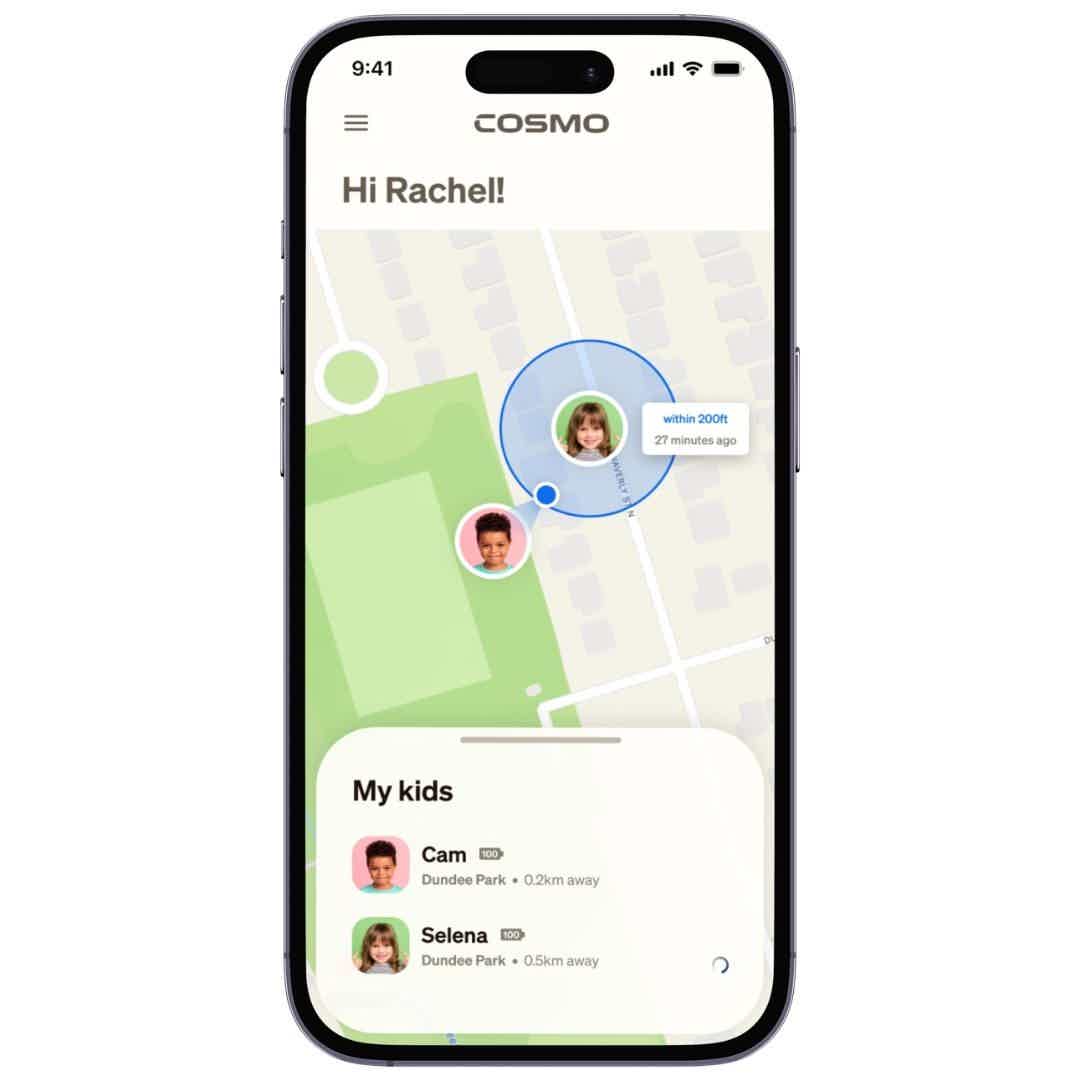
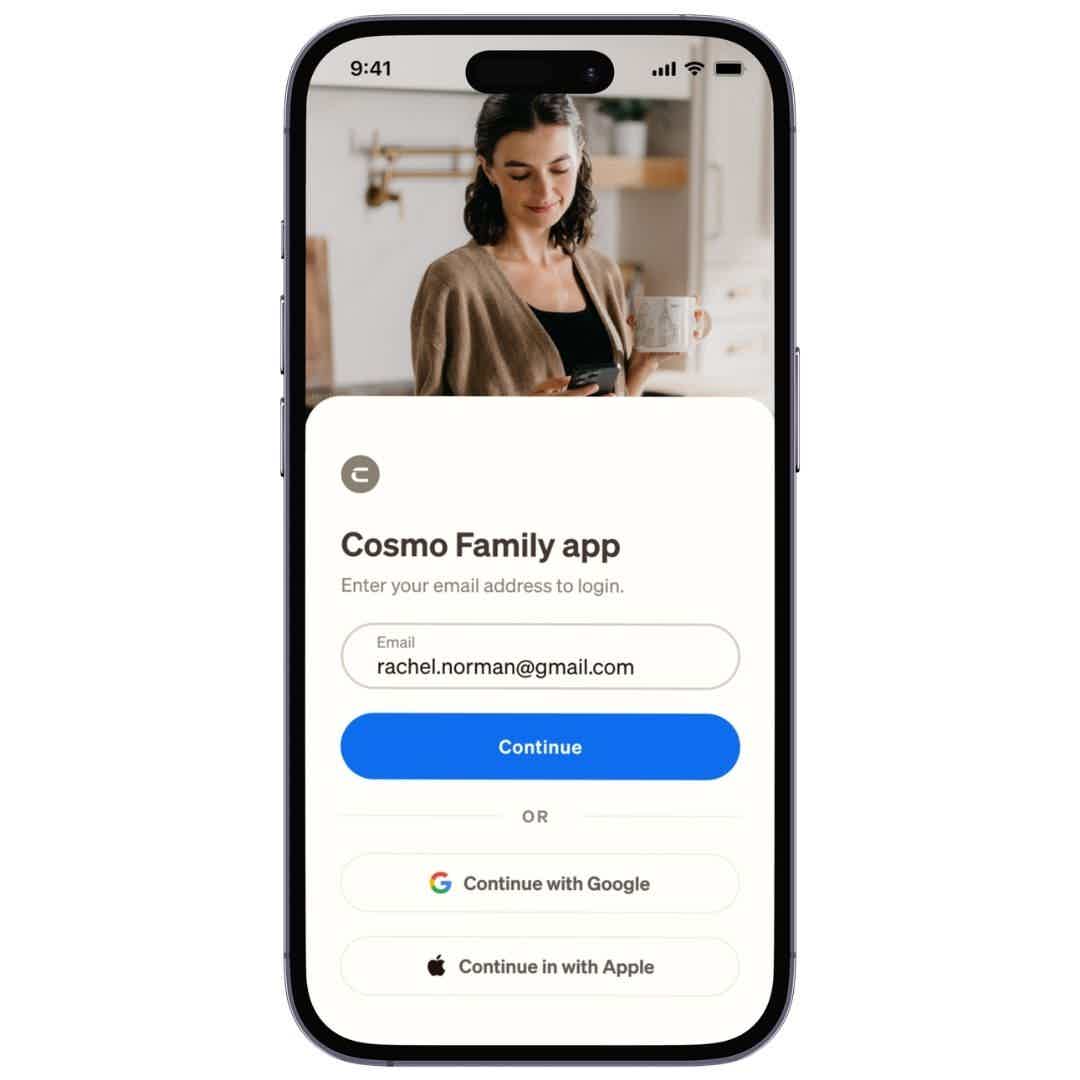
- Log in or create a parent account.
- Create a child profile.
- Once your child profile is created, bluetooth pairing will be initiated on the watch and your phone.
- Once the watch is detected, you will be prompted to connect, please follow the steps.
- During pairing you will be prompted to purchase a subscription.
- The subscription webpage may ask you to scan the QR code on the back of your watch - but instead you can find your QR code on the watch screen or on the back of the box
- Please note if you are on iOS you will be required to manually input the IMEI and QR scanning will not work
- Select the try it out/month to month plan
- Use the following coupon code at checkout: FUT2026
- Enter your payment information (you will not be charged)
- Submit your order
Additional Questions
How do I power on the watch?
Press and hold the power button until the Cosmo welcome screen appears.
What should I do if the watch says it cannot connect to the internet?
Select 'Try Again' to reconnect to data, or go to Settings > WiFi to connect to a network.
How do I connect the watch to WiFi?
Go to Settings > WiFi, toggle WiFi on, and select your preferred network. Ensure you see a checkmark next to the network name.
How do calls and messages work?
Calls and messages can be sent between the watch and approved contacts through the app. To enable this, contacts must first be added in Cosmo App under the child profile.
If a call or message isn’t going through, make sure:
- The contact is added and approved in the app
- The person receiving the call/message has the watch saved as a contact on their phone
How do I send a check-in from the watch?
Press and hold the power button for about 1 second to open the quick actions menu. Then tap the Check-In icon (person with a circle around them) to send your location update.
Why am I not receiving notifications?
Notifications may be turned off at the device level. To fix this:
- Go to the Controls section in the app
- Open the Push Notifications Menu
- Follow the prompt to enable permissions in your phone’s system settings
- Make sure notifications are allowed for the Cosmo App on your device.
How does live tracking work?
Live tracking lets you see real-time location updates for a short period.
To start:
- Tap on your child’s device from the map or list
- This begins a live session where location updates frequently
- If live tracking doesn’t connect or stops, it may be due to connectivity issues with the watch.
What are Focus Times and how do they work?
Focus Times let you schedule periods where certain watch features are limited to reduce distractions. You can set start/end times, choose specific days, and adjust the level of restriction.
How do SafeZones work and when will I receive notifications?
SafeZones let you set up areas like home or school and get notified when your child enters or leaves them.
Notifications depend on how often the watch updates its location:
- Alerts are triggered based on the automatic location update frequency (e.g., every 5, 15, or 30 minutes)
- If updates are less frequent, notifications may feel delayed
- Scheduled location updates (i.e. only during certain hours) will also affect when alerts are sent