User Guide
Get answers even faster from our AI assistant Rosey!
Setup
What comes in the box?
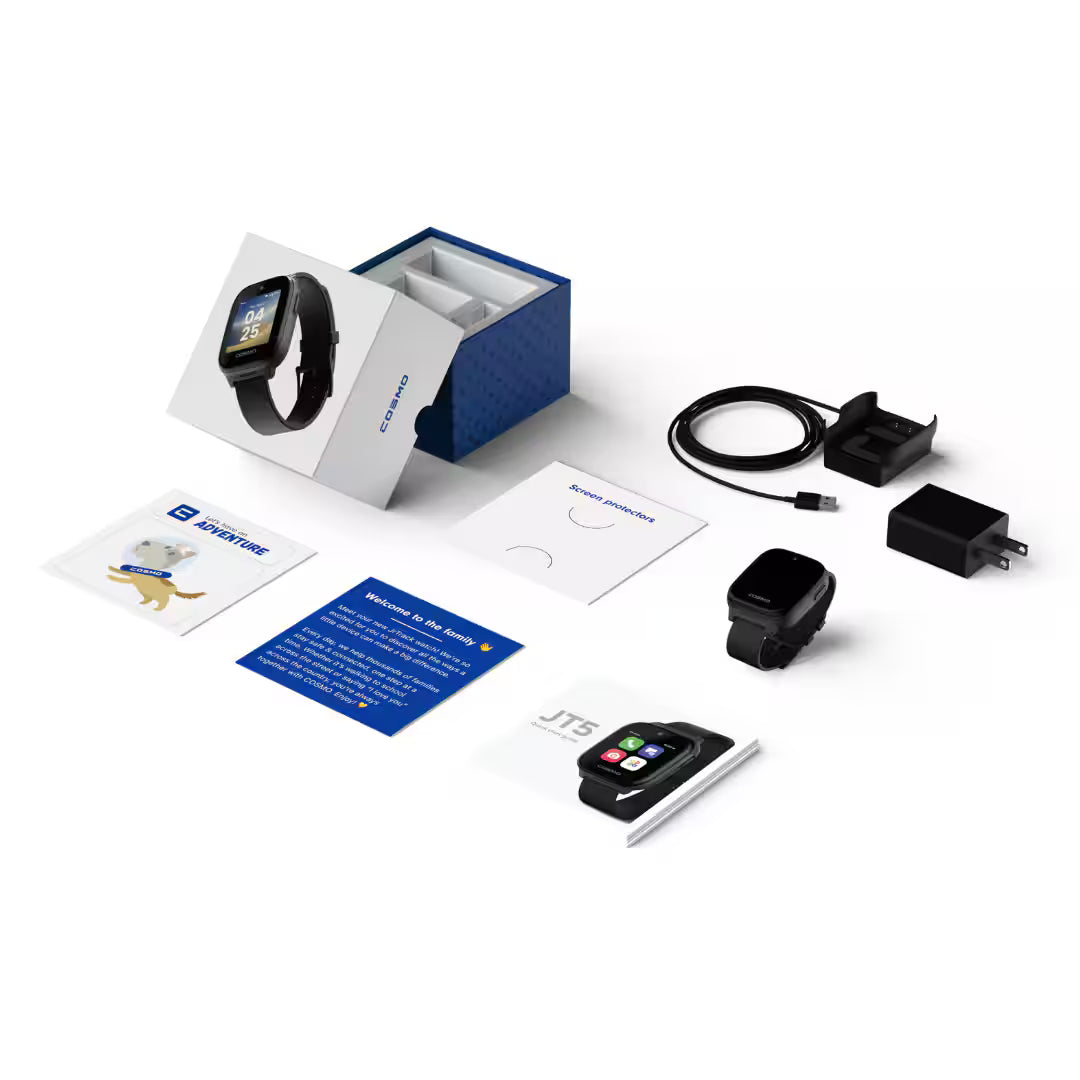
Your JT5 SE box should include the following items. Check everything is present before getting started.
- JT5 SE Smartwatch
- Charging clip & wall adapter
- Extra velcro band
- Extra silicone band
- Screen protector
- Quickstart guide
- Stickers!
The On/Off button is on the right side of the watch. The charging port is on the back. To navigate back within an app, swipe right from the left edge of the screen, or use the back button on the side of the watch.
Note
The JT5 SE uses an eSIM — there is no physical SIM card slot. Your cellular connection is activated through the Cosmo app during setup.
How do I charge the watch?
Before starting setup, charge your JT5 SE fully. Attach the charging clip to the back of the watch and plug the wall adapter in. The screen will show a charging indicator. A full charge takes approximately 90 minutes.
Tip:
If the watch doesn't turn on, it likely needs to charge first. Let it charge for at least 30 minutes before trying again.
How do I turn on the watch?
Press and hold the On/Off button on the right side of the watch for 2 seconds until the screen lights up. The first time you turn it on, the watch may take a few minutes to complete setup, updates and connect to the Cosmo network.
How do I set up a mobile plan or activate my Cosmo Membership
Follow instructions on the watch and download the Cosmo: Family Connection app on your device’s app store.
- On the watch, tap get started
- On your phone, in your device app store, search Cosmo: Family Connection and download the app
- Create your parent profile and then create a child profile.
- On the watch, click Continue to enable bluetooth pairing.
- Select connect once the new watch is found on your app.
- Choose your Membership plan and add Cosmo Care device protection.
- Review your order and complete the checkout.
- You will receive an email confirmation with your watch's phone number. This typically takes a few minutes.
- Up next, configure all the settings on your device.
Note:
All Cosmo Memberships include a 30-day money back guarantee.
How do I download the Cosmo App?
The Cosmo app is how you control the watch, see your child's location, manage contacts, and configure settings.
- iOS: Search 'Cosmo: Family Connection' in the App Store
- Android: Search 'Cosmo: Family Connection' in Google Play
Create a parent account
- Open the Cosmo app and add your email address.
- Check your email for a confirmation link and tap Confirm Email.
- Create your parent profile: Enter your name and phone number. Note: enter your phone number here, not the watch's number.
- Add a profile photo, it will appear on your child's watch when you call.
Create my child's profile
- After creating your profile, you’ll be prompted to create your child's profile or in the app, select controls, then Add child.
- Enter your child's name, birthday, and add a photo. Feel free to fill out any additional information about your child.
- Tap Finish to complete.
Pair your watch with the app
- Make sure the watch has connected to the internet and completed any software updates proceeded to the pairing screen.
- The app will look for the watch to pair and the connect button to pair will be in the app.
- If needed, In the app, scan the QR code displayed on the watch screen.
- Tap Connect to complete pairing.
How do I make a test call?
Once paired, place a test call to make sure everything is working. If the call doesn't connect, contact Cosmo Support at 877-215-4741 or support@cosmotogether.com.
Note:
It may take up to 24 hours for cellular data to be fully activated. WiFi features will work immediately after pairing.
How do I set up WiFi on the watch?
Connecting the watch to WiFi improves location accuracy indoors and is required for app downloads and music streaming.
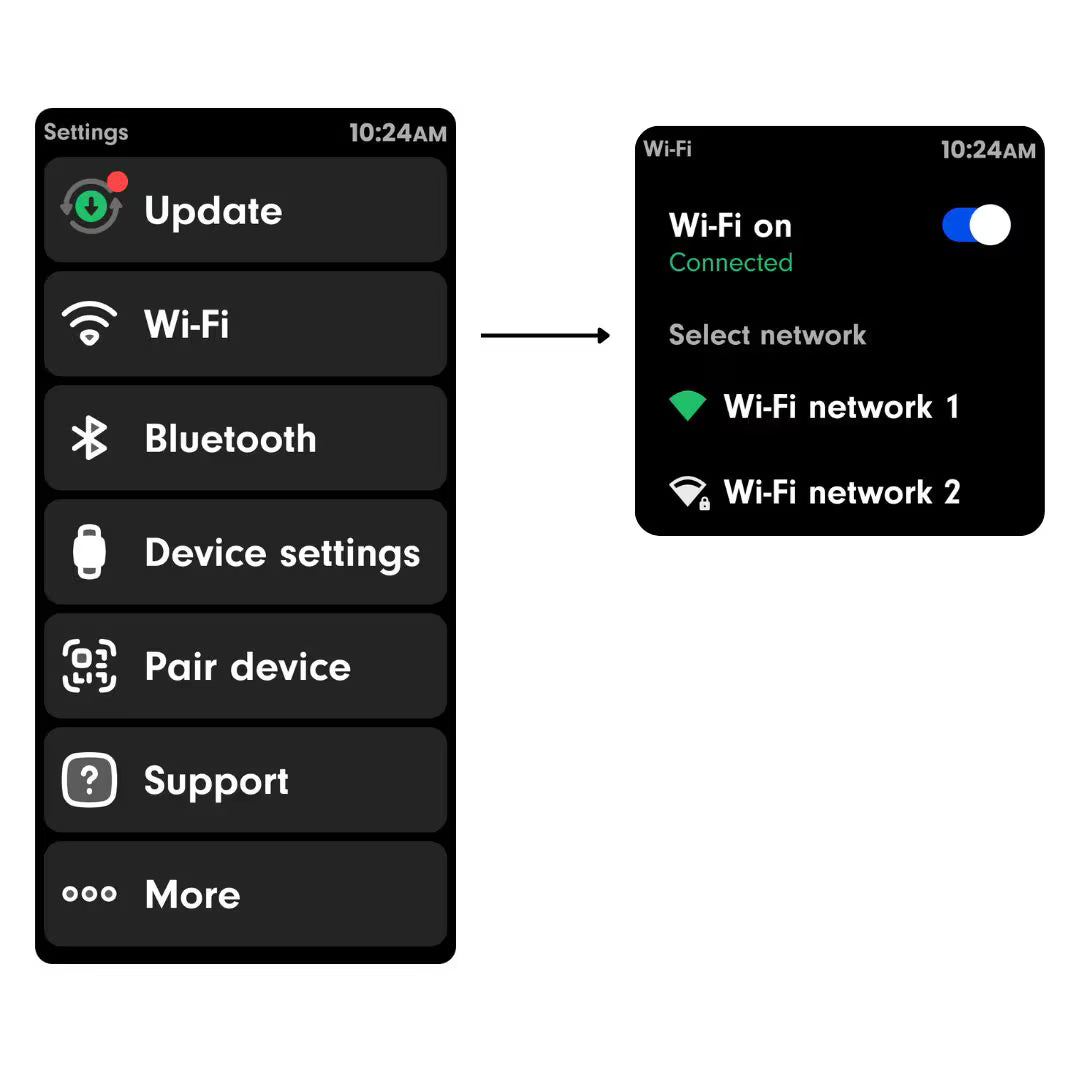
- On the watch, swipe to Settings (grey gear icon on the third app page).
- Tap WiFi and toggle it on.
- Tap your network and enter the password.
App Overview
The Cosmo app is your control center. From here you can view your child's location, manage contacts, set Routines, review messages, configure settings, and manage your account. The app is available on both iOS and Android.
App Navigation
The main navigation gives you access to:
- Home: Map view with child location
- Activity: Chronological feed of device and account events
- Controls: Child Profile/devices, My account, My parent portal, Push notifications, Support, Sign out
- Child Profile: Routines, Contacts, Guardians, Alarms, App station, Fitness, Location tracking, Preset Messages, Safety features, Location history, Call history, Remove device.
Inviting a Guardian
You can invite additional Guardians who get their own login and access to location, messages, and controls.
- In the app, go to your child's profile and tap Guardians.
- Tap the + button and enter the guardian's name and email.
- The guardian will receive an email from no-reply@cosmotogether.com with an invitation.
- The guardian downloads the Cosmo app, creates an account. The invite will pop up during onboarding if the guardian is a new user or if they are a current user it will appear in Controls or their activities in the Cosmo app.
They now have full access to the following:
- view child on map with the shield icon
- access the child profile in Controls
- receive child activities and push notifications
- can edit child profile, location settings, and safety settings
- can manage location tracking, contacts, safezones, focus times, and preset messages
- can view call history and fitness history
Note:
Guardians share the mostly the same level of access as the primary parent for day-to-day features but cannot change billing settings or remove the primary parent's account.
Contact Types
There are three types of approved contacts on the JT5 SE:
- Contact: Can call and text the watch. Does not need to accept an invite — once added, they can communicate immediately.
- Guardian: Can call, text, and see your child's GPS location. Must accept an email invitation to activate access.
- Buddy: feature lets two kids add each other as contacts directly from their watches using Bluetooth.
Adding a Contact
- In the Cosmo app, go to your child's profile and tap Contacts.
- Tap the + button.
- Select from contacts, create new or cancel.
- Enter the contact's name and phone number.
- Select which watches to allow the contact to connect with.
- Tap the blue check button to save the contact.
- The contact will appear on the watch immediately.
Adding a Guardian
- Follow the same steps above but select Guardian as the contact type.
- Enter the guardian's name, and phone number.
- The guardian receives an invite email to accept the request.
- The guardian downloads the Cosmo app, creates an account, goes to My Devices, and taps Confirm to accept.
Adding a Buddy or Buddy request
The Add a Buddy feature lets two kids add each other as contacts directly from their watches using Bluetooth.
- Both watches must be nearby with Bluetooth enabled.
- Each child opens the Add a Buddy app (purple icon on the last app page) and finds each other.
- Both children tap the checkmark to confirm.
- A pending request will appear in each parent's Cosmo app under their child's Contacts and on the Activities page.
- From controls, select the child's name that has a blue indicator next to their photo, select contacts, select review, select approve or reject.
- Both parents must tap Approve in the app. Once both approve, the kids can call and text each other.
- You can also delete a buddy following the same instructions as deleting a contact.
Removing a Contact
- In the Cosmo app, go to your child's Contacts.
- Tap the contact you want to remove.
- Select Remove Contact. The contact is removed immediately from both the app and the watch.
Viewing Your Child's Location
Your child's current location appears as a pin on the home screen map. Tap the pin to start Live tracking. Each location entry is listed in the Location history. That information can be accessed in the child profile page.
Tip:
Turning on WiFi on the watch improves location accuracy when your child is indoors.
Configuring Location Update Frequency
You control how often the watch updates location. The default is every 30 minutes between 7am–7pm (watch's timezone).
- In the Cosmo app, tap your child's profile.
- Go to Location tracking.
- Choose your preferred interval: 5, 10, 15, 30, 45, or 60 minutes — or turn updates off entirely.
- You can also choose whether updates run 24 hours a day or only during a custom time window.
- Tap the blue check mark to save.
Available intervals: 5 min · 10 min · 15 min · 30 min (default) · 45 min · 60 min · Off
Important:
Important: More frequent location updates use more battery. Setting updates to every 5 minutes will significantly decrease battery life compared to the default 30-minute setting. The JT5 SE is designed for 24+ hours of battery at default settings. If the battery drains faster than expected, reduce your location update frequency or limit the active window to daytime hours.
Live Tracking
Live Tracking activates HaloGPS at full power, updating location every 5–10 seconds for up to 15 minutes.
- From the app home screen, tap your child's pin on the map.
- Then tap Track.
- Location will update every 5–10 seconds until you close the app or 15 minutes pass.
Note:
Live Tracking may drain battery quickly. Use it for short periods when you need real-time reassurance — not as a default setting.
Location History
View a timestamped trail of where the watch has been.
- From the app home screen, tap profile.
- Tap Location History.
- Use the calendar to select a date and view historical location data.
What Are Routines?
Routines are location- and time-based rules that automatically adjust what the watch can do. Instead of manually turning settings on and off, you set them once and Cosmo handles the rest. The most powerful Routine is School Routine — it automatically puts the watch into a focused, distraction-free mode the moment your child arrives on campus.
Setting Up School -Fi Routine
- In the Cosmo app, tap add Routines, then select the school icon when creating your Routine.
- Or if you haven’t set a Routine up yet, you’ll see “Add your first Routine”
- Search for your child's school by name. If it doesn't appear, you can type any address manually.
- Review or adjust the school schedule (days and hours).
- Set your preferred restriction level.
- Fully restricted - Child can only activate SOS
- Partially restricted - Child can only activate SOS, call or message primary parent or guardians.
- Unrestricted - Child uses the device as normal.
- Tap Save. School Routine is now active.
Once active, School Routine will automatically switch the watch into focused mode when your child is on school grounds during scheduled hours. When they leave campus, the watch automatically returns to normal mode.
How it works:
School Routine uses both GPS location AND the schedule you set. If your child is home sick, it stays off — no manual override needed.
Routines: What's Blocked and What's Always On
- Fully restricted: only SOS will be available.
- Partially restricted: call and message parent, guardians and 911 if enabled
- Unrestricted: device will function normally.
- When the Routine ends, the watch automatically returns to normal mode
- Children cannot deactivate a Routine — Primary and Guardians can modify or turn it off.
Setting Up Other Routines
Beyond School-Fi Routine, you can set custom location and time based Routines — for example, getting notified when your child arrives home from school or leaves a friend's house.
- In the Cosmo app, tap Routines, then tap Add Routine.
- Name your Routine and set a location (search an address or drop a pin on the map or manually enter an address).
- Set the days and times for the Routine to be active.
- Choose the restriction level and notification preferences.
- Tap Save.
Tip:
Arrival and departure notifications are triggered based on your location update frequency setting. For faster notifications, reduce the update interval — but be mindful of battery impact.
How Calling Works
Your child can only call and receive calls from approved contacts and guardians. Unknown numbers cannot reach the watch.
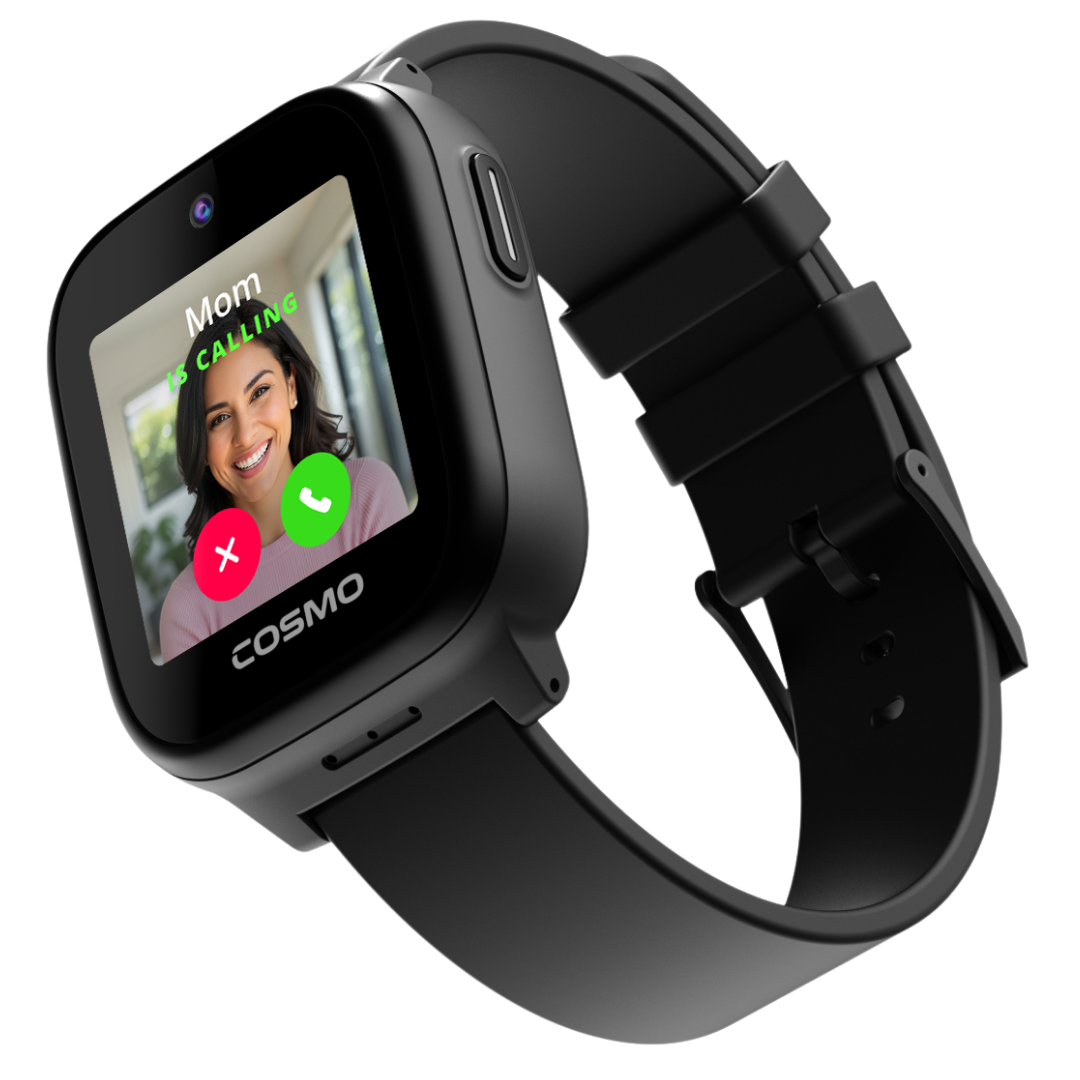
- Incoming calls: Accept with the green button, decline with the red button.
- To call someone: Tap the phone icon on the first app page, select a contact, and tap to call.
- To adjust volume during a call: Tap the speaker icon in the top right.
How Messaging Works
JT5 SE supports real SMS texting with a real phone number. Your child can send and receive texts, photos, voice memos, and videos from approved contacts.
- To open messages: Tap the blue message icon on the first app page.
- Select a contact, then choose: keyboard text, image/video, or voice memo.
- Preset messages: Your child can tap pre-loaded quick-reply messages. Or you can edit or remove these in the Cosmo app under your Child’s profile, tap preset messages.
- Voice to text: Tap the microphone icon in the message field to dictate a message, tap again to stop.
Group Messaging
The watch can be added to a group text of up to 8 members, as long as everyone in the group has been added as an approved contact or guardian in the parent app.
Reviewing Your Child's Messages
Parents can view the full message history from the parent portal (not currently in the Cosmo app). Log into Parent portal to view full message history.
Privacy note:
Your child cannot see when you review their messages.
Music Streaming
ids can stream Spotify, Spotify Kids, and iHeartRadio directly on the watch. Music only works over WiFi — it does not stream over cellular.
- Make sure the watch is connected to WiFi.
- In the Cosmo app, tap the child profile, tap App Station and install the music app of your choice.
- On the watch, open the music app and log in with your child's account credentials.
- Save songs or playlists for offline playback when WiFi isn't available.
Note:
Bluetooth is available for audio output (headphones/speakers) but does not support phone calls.
Browsing & Installing Apps
The App Station lets you install and manage parent-approved apps on the watch. Your child cannot install apps themselves.
- Make sure the watch is connected to WiFi.
- In the Cosmo app, navigate to App Station (accessible from the main menu or the Parent Portal at parent.cosmotogether.com).
- Browse available apps and tap Download to install any app on your child's watch.
- The app will appear on the watch once downloaded.
Important:
Apps must be downloaded over WiFi. Keep the watch on its charger during large downloads.
Setting App Time Limits
- In App Station, tap on any installed app.
- Tap Set Time Limit and choose a daily time allowance.
- Once the time limit is reached, the app locks until the next calendar day.
Removing an App
- In App Station, find the installed app.
- Tap Uninstall. The app is removed from the watch remotely.
Note:
Apps remain on the watch even if the watch is temporarily unpaired from the parent app — they are only removed when you uninstall via App Station.
Setting Alarms from the App
- In the Cosmo app, open the Controls menu and tap Activity Center.
- Tap Alarms, then tap the blue + button.
- Set the alarm time, name, and days of the week. Tap Save.
Alarms set from the parent app appear on the watch with a gold star. Your child cannot edit or delete parent-set alarms.
Setting Alarms from the Watch
- On the watch, swipe to the second app page and tap the yellow Alarms app.
- Tap New Alarm, set the time and repeat schedule, and tap the blue checkmark to save.
Step Tracker & Fitness Goals
- In the Cosmo app, go to Activity Center and tap Step Counter.
- View daily, weekly, and monthly step counts and estimated calorie burn.
- Tap the + button to set a daily step goal for your child.
SOS Mode
SOS sends an immediate silent alert to the primary parent and all guardians, and activates Live Tracking automatically. It does not call 911.
How your child activates SOS:
- Press and hold the side button for 5 seconds.
- A silent 15-second countdown begins to prevent accidental activations.
- Once confirmed, an alert is sent to all guardians and Live Tracking begins.
What parents receive:
- An immediate push notification and alert in the Cosmo app
- Automatic Live Tracking — location updates every 10 seconds for 15 minutes
- Calling the watch while SOS is active connects silently — you can hear without your child knowing you're listening, unless they adjust the watch volume
- An immediate push notification and alert in the Cosmo app
- Automatic Live Tracking — location updates every 10 seconds for 15 minutes
- Calling the watch while SOS is active connects silently — you can hear without your child knowing you're listening, unless they adjust the watch volume
Turning off SOS:
Only the primary parent can turn off SOS mode. Open the Cosmo app, tap the SOS notification or go to the watch controls screen, and tap Turn Off SOS.
Emergency Calling (911)
911 calling is off by default. When enabled, your child can call 911 directly from the watch with a double-confirmation and 5-second countdown to prevent accidental calls.
To enable 911 calling:
- On the Child’s profile page, Tap safety features.
- Enable "Show emergency calling".
Note:
Emergency calling is only available when the device is not in a fully restricted Routine. If the watch is in full lockdown mode, 911 calling will not be available.
Accessing Watch Settings
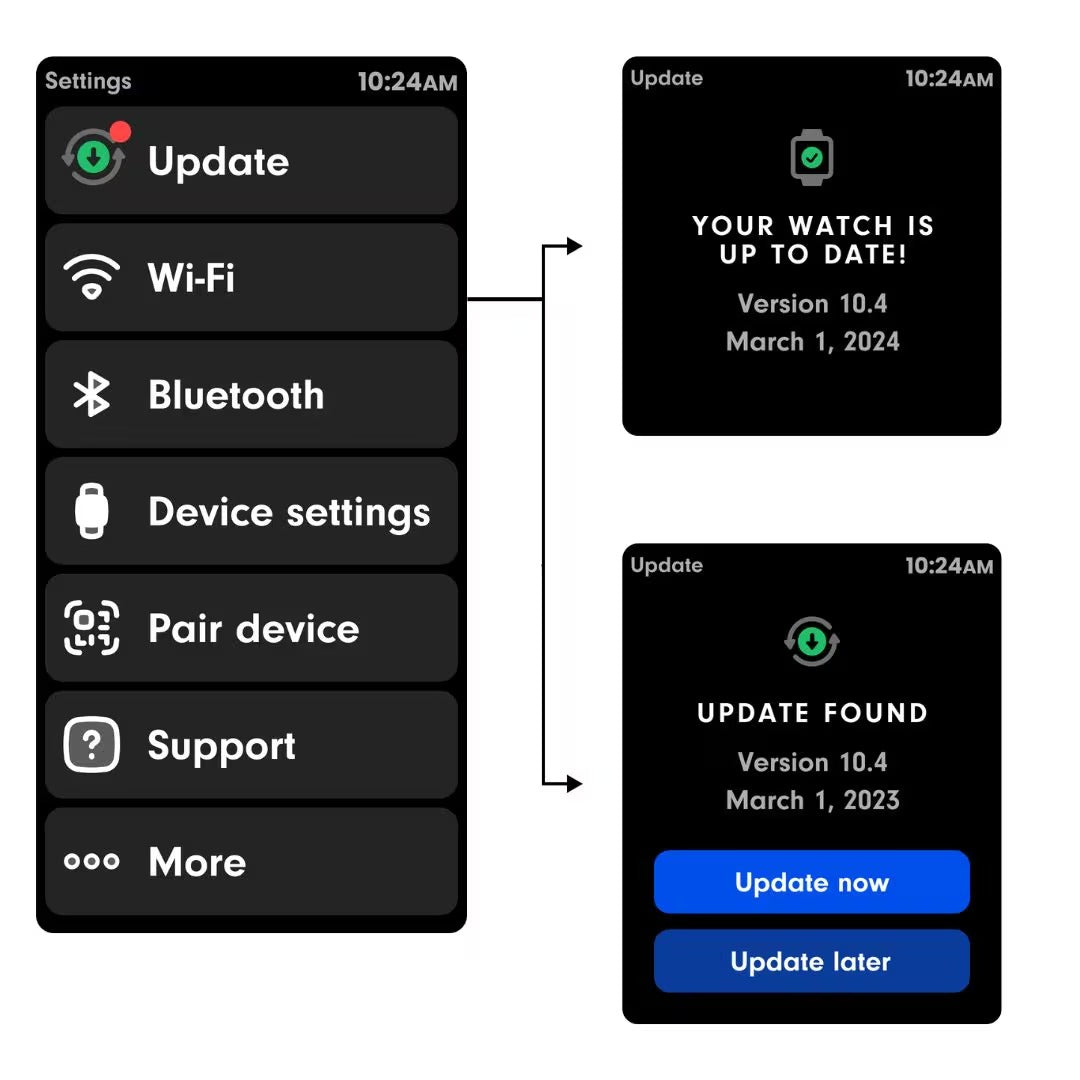
Swipe to the third app page on the watch and tap the grey Settings icon. This opens the main settings menu.
Customizing the Watch Face
On the watch, tap the paintbrush icon on the first app page. Choose from pre-loaded backgrounds or use one of your child's own photos. Kids can personalize their watch face, ringtone, and wallpaper to make it feel like theirs.
Quick Settings
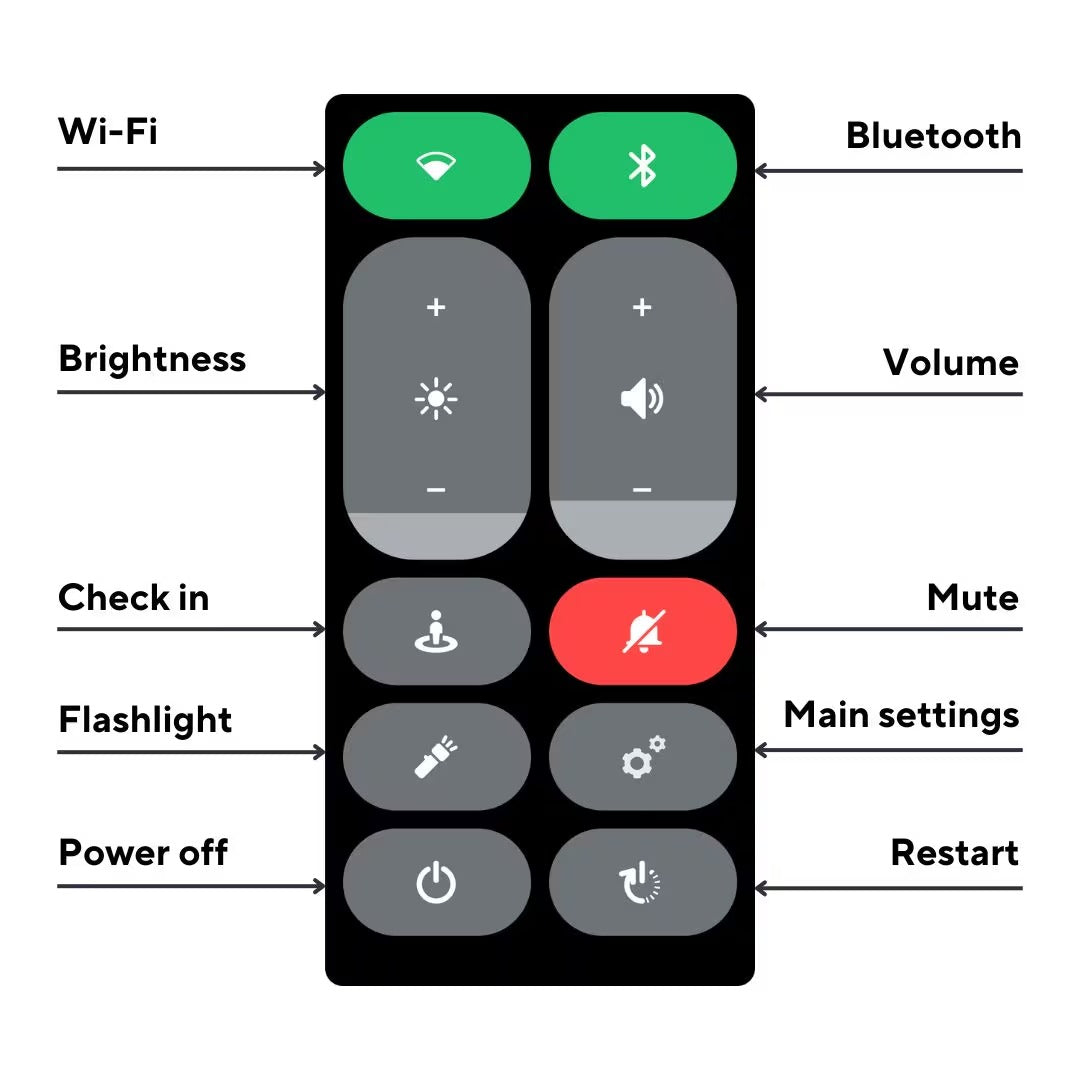
Long press the Power button to open Quick Settings. From here you can quickly adjust WiFi, Bluetooth, brightness, volume, mute, flashlight, and restart options.
- Green icon = enabled, Grey icon = disabled, Red mute = watch is muted
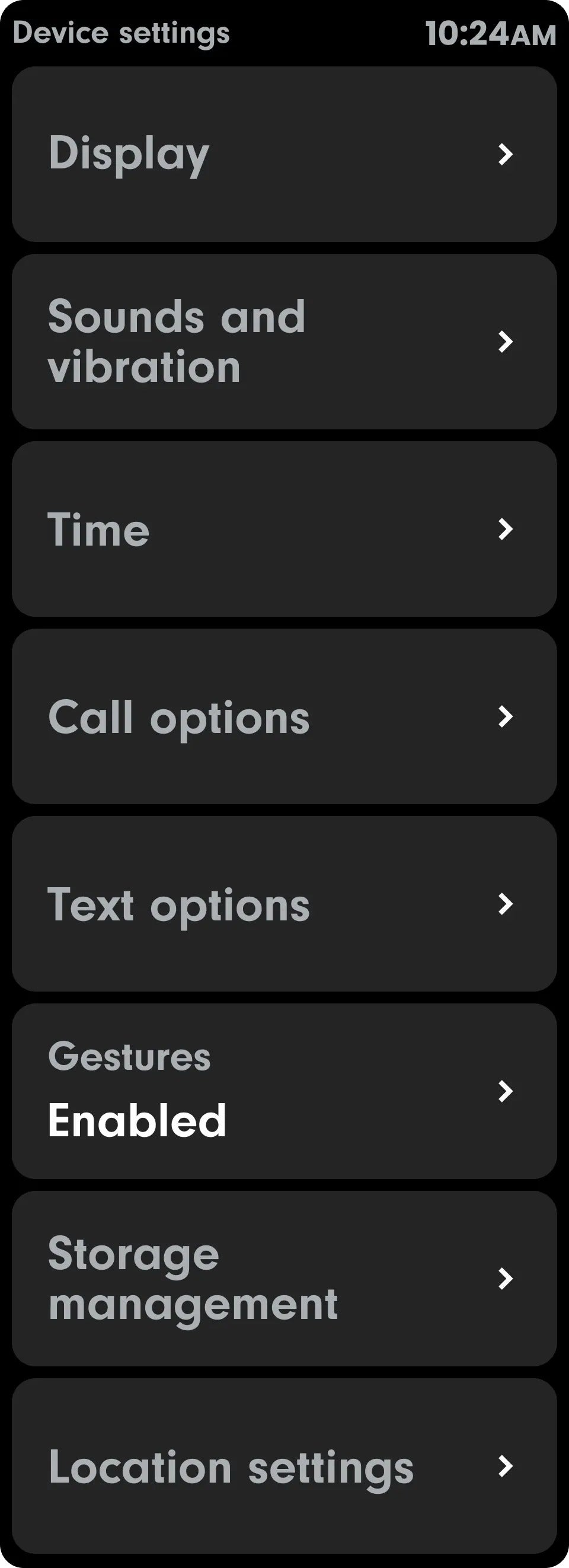
Device Settings Overview
- Display: Brightness, font size, screen timeout, charging display
- Sound & Vibration: Ringtone, volume, vibration toggles
- Time: Timezone and 24-hour time toggle
- Call Options: Enable/disable 911 calling
- Text Options: Toggle voice note transcription and Wireless Emergency Alerts
- Gestures: Toggle swipe-to-go-back gesture
- Storage Management: Delete photos and videos taking up storage space
- Location Settings: Adjust on-device GPS timeout settings
Software Updates
Open Settings on the watch and tap Update at the top of the menu. If a red dot is present, an update is available. Tap to install. Keep the watch charged and connected to WiFi during updates.
Accessing the Parent Portal
For billing, plan management, and advanced account settings, visit parent.cosmotogether.com or tap Parent Portal in the Cosmo app main menu.
Viewing Your Plan
- Log in to the Parent Portal.
- Click Plans from the home screen.
- View your active plans, payment info, next bill date, and IMEI number.
Updating Payment Info or Cancelling
Billing updates and cancellations are managed in the Parent Portal under Plans. Contact support@cosmotogether.com if you need assistance.
Cosmo Care Protection
Cosmo Care covers accidental damage, water damage, loss, and theft — plus free device upgrades every two years. Cosmo Care must be added at the time of membership purchase.
- Cosmo Care Basic: $2.99/mo — covers all damage, loss, and theft
- Cosmo Care Plus: $2.99/mo — covers all damage including water
30-Day Money Back Guarantee
Every Cosmo Membership is eligible for a full refund within 30 days of activation. Contact support@cosmotogether.com to initiate a return.
Note