Set up your watch

What’s in the box

  • JrTrack Pro smartwatch
  • Charging clip and wall adapter
  • Extra velcro band
  • Quickstart guide
No SIM card to install. The JrTrack Pro uses an eSIM, so there is no SIM tray. Cellular service is switched on during setup.

Buttons and ports

  • The Power button is the top button on the right side. Press to wake or sleep the screen and to go back. Hold for Quick Settings or SOS.
  • The Action button is the bottom button on the right side. It opens your child’s Quick Access app, or does the main action on the current screen, like taking a photo or answering a call.
  • Charging contacts are on the back of the watch.

See Button navigation for everything each button does.

JrTrack Pro seen from the front and to the right, with the orange Power button on top and the ridged Action button below it
Power on top, Action below it

Charge it first

Charge the watch fully before you start setup. Attach the charging clip to the back of the watch and plug in the wall adapter. A charging indicator appears on screen. A full charge takes about 90 minutes.

Watch won’t turn on? It almost always just needs charging. Leave it on the charger for at least 30 minutes, then try again.

Turn it on

Press and hold the On/Off button on the right side for 2 seconds until the screen lights up.

The first startup takes a few minutes while the watch finishes setup, installs updates, and connects to the Cosmo network. That is normal, let it run.

Download the Cosmo app

The Cosmo app is how you see your child’s location, manage who can reach them, set Routines, and change settings. Search for Cosmo: Family Connection.

Create your parent account

  1. Open the Cosmo app and enter your email address.
  2. Check your inbox for the confirmation link and tap Confirm Email.
  3. Enter your name and phone number. Use your number here, not the watch’s number.
  4. Add a profile photo. It shows on your child’s watch when you call.

Add your child’s profile

  1. After your own profile, the app prompts you to create your child’s. You can also go to Controls › Add child at any time.
  2. Enter their name and birthday, and add a photo.
  3. Fill in any extra details you want, then tap Finish.

Their profile becomes the hub for every setting on the watch. See what lives inside it.

Your child's info screen in the Cosmo app with an add photo control, name and birth date fields, and optional gender, height and weight
Name and birthday, the rest is optional

Pair the watch and activate

  1. On the watch, tap Get started.
  2. On your phone, search your app store for Cosmo: Family Connection and install it.
  3. Create your parent profile, then create a profile for your child.
  4. On the watch, tap Continue to enable Bluetooth pairing.
  5. Tap Connect in the app once it finds the new watch.
  6. Choose your membership plan and decide whether to add Cosmo Care device protection.
Every membership includes a 30-day money back guarantee.
Cosmo app showing a found Cosmo JrTrack Pro with its IMEI and a Connect button
The watch appears by name, with its IMEI

Connect to Wi-Fi

Wi-Fi improves location accuracy indoors, and it is required for app downloads and music streaming. Worth doing at home before they wear it out.

  1. On the watch, swipe to Settings, the grey gear icon on the third app page.
  2. Tap WiFi and toggle it on.
  3. Tap your network and enter the password.
Wi-Fi screen on the watch with Wi-Fi switched on, a connected network and a list of nearby networks
Wi-Fi settings on the watch

Button navigation

The JrTrack Pro has two buttons. The Power button (top) handles screen on/off, back, Quick Settings and SOS. The Action button (bottom) is a shortcut that changes with what’s on screen.

Power button

PressWhat it does
Hold 3 seconds (watch off)Turns on
Press (when screen is off)Wakes the screen
Press (home screen)Turns the screen off
Press (inside an app or menu)Goes back one screen
Double press (inside an app or menu)Goes to the home screen
Hold 1 secondOpens Quick Settings
Hold 5 secondsStarts SOS
Hold 10 secondsRestarts the watch (no confirmation)
Press 15 times, then press the Action button 5 timesFactory reset

You can also swipe in from the left edge of the screen to go back.

Action button

WhenWhat it does
Screen offWakes the screen
Home screen, or any screen without its own actionOpens the Quick Access app (Messages by default)
Inside a supported appDoes that screen’s main action (see Contextual actions)

Action button settings

On the watch, go to Settings › Device Settings › Action Button.
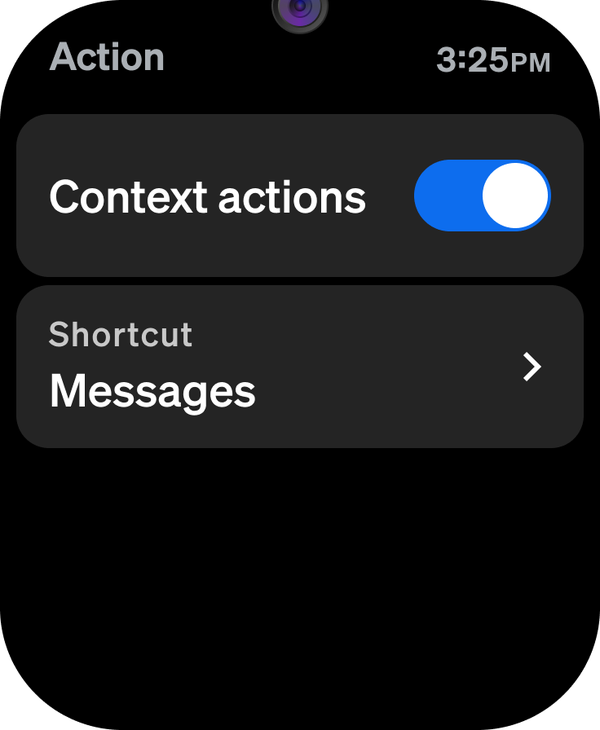
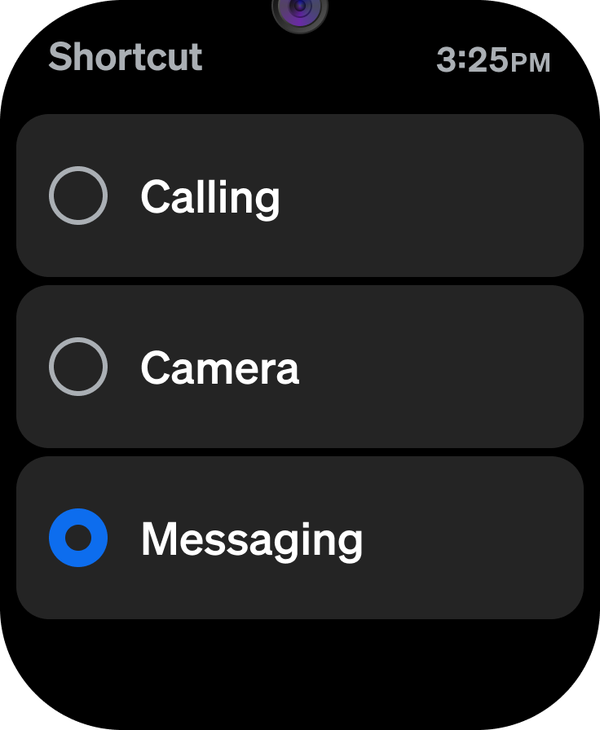
  • Contextual action: on or off. On by default. When on, the button performs that screen’s main action. When it’s off, the Action button always opens the Quick Access app (except on the blocked screens listed below).
  • Quick Access: choose which app the Action button opens: Messages, Calling or Camera.
Action screen on the watch with the Context actions toggle switched on and the Shortcut set to MessagesShortcut picker on the watch with Calling, Camera and Messaging, Messaging selected
Turn contextual actions on or off, then pick the Quick Access app

Contextual actions

With the contextual action setting on, the Action button does the obvious thing on each screen. On screens without a specific action, it opens the Quick Access app.

AppScreenAction button
PhoneIncoming callAnswer
PhoneOutgoing or active callEnd call
PhoneMissed callCall back
MessagesTyping with the keyboardSend/Enter
MessagesTaking a photo to sendTake photo, then send it from the preview
MessagesRecording a video to sendStart or stop video, then send it from the preview
MessagesVoice memoStart or stop recording, then send it from the preview
CameraCameraTake photo
VideoVideoStart or stop recording
Voice NotesRecorderStart recording, stop recording, play
Stopwatch and TimerRunning screenStart or stop
Alarms, Calculator, Steps, Weather, Settings, Clocks, Wallpapers, The Week Junior, Add a Buddy, Contacts, GalleryAnyOpens the Quick Access app

When the Action button does nothing

  • In apps installed from App Station
  • During first-time setup
  • While a software update is checking or installing
  • In Storage management
  • During Water ejection
  • During a fully or partially restricted Routine, so it can’t be used to get around school restrictions
Quick Access also never opens on top of a call screen or while recording video or a voice note. In those cases the Action button either does the screen’s action or nothing.

The Cosmo app

Your control center. Available on iOS and Android.

Finding your way around

  • Home is the map with your child’s location.
  • Activity is a running feed of what has happened: arrivals, photos, step goals, low battery, SOS alerts.
  • Controls is where you’ll find your child profiles, your account, the Parent Portal, push notifications and support.
  • Child profile, reached by tapping a child in Controls, is where Routines, Contacts, Guardians, Alarms, App Station, Fitness, Location tracking, Preset messages, Safety features and history all live.
Controls tab in the Cosmo app showing a list of children, My account, My parent portal, Push notifications and Support
The Controls tab

Each child’s profile

Tap a child in Controls to open their profile. This is the screen you will use most. It holds their watch, their Routines, everyone allowed to contact them, and every feature you can turn on or off.

Scroll down the same screen for Alarms, App Station, Fitness, Location tracking, Preset messages and Safety features, then call and location history at the bottom.

Child profile screen in the Cosmo app showing a paired JrTrack Pro, a Home Routine and Contacts
One screen per child, scrolled for the rest

The Activity feed

Activity is a chronological feed of device and account events, so you can catch up without opening anything else.

Push notifications

Go to Controls › Push notifications. All categories are on by default: Connection requests, Device usage, Routines, Step goals, and SOS and emergencies.

Contacts & buddies

Only people you approve can reach the watch. Unknown numbers never get through.

The three contact types

ContactCan call and text the watch. Works as soon as you add them.
GuardianCan call, text and have access to a child’s location and settings through the Cosmo app. They can be invited from the Guardians page.
BuddyAnother child’s Cosmo watch. The two kids add each other over Bluetooth, then both parents approve.

In the app, you appear with a star, guardians with a shield and buddies with the Cosmo “C”.

Invite a guardian

Guardians get their own login and access to the app. Good for a second parent, a grandparent, or a nanny.

  1. Go to your child’s profile and tap Guardians.
  2. Tap +, enter their name and email, and pick which children you want them to be a guardian for.
  3. If they already use the Cosmo app, the invite appears in their app. If not, they download the app, create an account, and then review the invite.

Once accepted, a guardian is added as a contact on the watch and can:

  • See your child on the map, marked with a shield icon
  • Receive activity updates and push notifications
  • Edit the child profile, location settings and safety settings
  • Manage location tracking, contacts, Routines and preset messages
  • View communication history and fitness history
Some things stay with the primary parent. Guardians cannot delete the child profile, add or remove a watch, or change billing information.

Add a contact

  1. Go to your child’s profile and tap Contacts.
  2. Tap +.
  3. Enter their name, country code and phone number.
  4. Select which children this contact can reach.
  5. Tap the blue check to save.
  6. Optional: tap Send SMS if you want to text them a ready-made message saying they can now call or text your child.

The contact appears on the watch straight away.

Contacts list on the watch showing Mom and Dad starred, Lara, a 911 entry and Call history
Approved contacts as they appear on the watch

Add a buddy

  1. Both watches need to be near each other with Bluetooth on.
  2. Each child opens the Add a Buddy app, the purple icon on the last app page, and finds the other watch.
  3. Both children tap the checkmark to confirm.
  4. A pending request appears in each parent’s app under the child’s Contacts and on the Activity page.
  5. In Controls, tap the child with the blue dot next to their photo, then Contacts › Review, then approve or reject.
  6. Once both parents approve, the two kids can call and text each other.

Removing a buddy works the same way as removing any contact.

Add a Buddy on the watch searching for nearby watches, with Cam ready to add and Lara needing a software update
Both kids search at the same time

Remove a contact

  1. Go to your child’s Contacts.
  2. Tap the contact you want to remove.

They disappear from the app and the watch immediately.

Location & GPS

See where your child is

Your child’s latest location shows on the Home map. When the map is open, any location older than 3 minutes refreshes automatically. A circle around the pin means the location is less precise than 100 ft. Tap your child to see their address, battery and quick actions to call, message or track.

Turn on Wi-Fi for better indoor accuracy. GPS struggles inside buildings. Wi-Fi can provide a much better location at school or at home.

How often location updates

Location updates automatically. The default is every 30 minutes, between 7am and 7pm in the watch’s timezone.

  1. Open your child’s profile and tap Location tracking.
  2. Pick 5, 10, 15, 30, 45 or 60 minutes, or turn updates off.
  3. Choose a time window, or turn the schedule off to update around the clock.
  4. Tap the blue check to save.
More frequent updates use more battery. The JrTrack Pro is built to last up to 72 hours on standby. If the battery drains faster than you’d like, lengthen the interval or limit updates to daytime.
Location tracking settings showing the update frequency slider from 5 to 60 minutes and a scheduled window of 7:00am to 7:00pm
Frequency and schedule, both on one screen

Live Tracking

  1. On the Home map, tap your child, then tap Track.
  2. Location updates every second for up to 5 minutes. A pulsing green pin and the Tracking label mean it’s connected.
  3. Tap X to stop early.

Live Tracking points are saved to Location history every 10 seconds.

Live Tracking in the Cosmo app, with a child's pin pulsing green on the map and a Tracking label
The green pulse means tracking is live

Location history

  1. Open your child’s profile and tap Location history.
  2. Pick a date from the calendar.
  3. Tap a pin to see the time, address, and whether GPS or Wi-Fi was used.

Check in

Your child can send you their location from Quick Settings › Check-in. You get a push notification and an activity, and a green check on the map for three minutes.

Find my device

Lost the watch somewhere nearby? Tap your child on the map (or open their profile) and tap Find. The watch plays a sound for 5 seconds, even when muted or in a Routine. Your child can stop it early.

Find won’t play during a call, a recording, an alarm, or SOS.

Routines & School-Fi

What Routines are

Routines change what the watch can do automatically, based on where your child is, the time, or both.

Location onlyAlerts when your child arrives or leaves.
Schedule onlyRestricts the watch at set times, like bedtime.
Location and scheduleRestricts the watch during set times, with arrival and departure alerts during that time. Use Real-time detection to automatically check your child’s location more frequently around the start and end times. Intelligent Mode can be used to restrict the watch only after your child has arrived at their location.

Set up a School Routine

  1. In your child’s profile, tap Add Routine and choose the school icon.
  2. Search for the school. If it’s not listed, add it by name and address.
  3. Set the school boundary on the map.
  4. Set the days and hours.
  5. Pick a restriction level.
  6. Tap Save.
School Routines turn on Intelligent Mode and Real-time detection by default. Restrictions start only once the school day has started and your child is at school, so a sick day at home stays unrestricted. If plans change, turn the Routine off for the day from its Activity entry.

What each restriction level does

Fully restricted

  • SOS
  • Calls and messages
  • Apps, camera, games
  • Action button

Partially restricted

  • SOS
  • Calls and messages with parents and guardians
  • 911, if you enabled it
  • Calling other contacts
  • Apps, camera, games

Unrestricted

  • Everything

When the Routine ends, the watch returns to normal on its own. Children can’t turn a Routine off. Only the primary parent and guardians can.

Other Routines

  1. In your child’s profile, tap Routines › Add Routine.
  2. Name it, choose an icon, and add a location, a schedule or both.
  3. For a location, choose whether you want arrival and departure alerts.
  4. For a schedule, choose the restriction level.
  5. Tap Save.
Arrival alerts are only as fast as your update interval. They fire off the back of location updates, so a shorter interval means quicker notifications, at the cost of battery.

Calls & messages

Calling

Your child can only call, and be called by, approved contacts and guardians.

  • Incoming call: tap green to answer or red to decline, or press the Action button to answer.
  • Make a call: open the Phone app, pick a contact, and tap to call. If Calling is set as Quick Access, press the Action button from the home screen.
  • End a call: tap the red button or press the Action button.

Messaging

The JrTrack Pro has a real phone number and sends real SMS. Your child can text, and send photos, videos and voice memos to approved contacts, who reply from their normal messaging app.

  • Open Messages: press the Action button from the home screen (Messages is the default Quick Access app), or tap the Messages icon.
  • Pick a contact, then choose keyboard, photo or video, or voice note.
  • Action button: sends text messages, takes the photo or video, and starts or stops voice memos.
  • Voice to text: tap the microphone to dictate.
  • Preset messages are one-tap replies. Edit them in the Cosmo app under your child’s profile › Preset messages.
A conversation on the watch with photo, camera and voice memo buttons, a Send text field and preset replies
Type, snap, record, or tap a preset

Review your child’s messages

Full message history can be found on the Message history page in your child’s profile and in the Parent Portal (Controls › My parent portal, or parent.cosmotogether.com).

Your child is not notified when you read their messages.

App Station

You install the apps. Your child can’t add anything themselves.

Install an app

  1. Make sure the watch is on Wi-Fi.
  2. In your child’s profile, tap App Station.
  3. Browse and tap Download.
App Station in the Cosmo app showing available and installed apps including iHeart Radio, Spotify, The Week Junior and 2048 with a 30 minute limit
The app library, with time limits shown inline

Set a time limit

  1. In App Station, tap an installed app.
  2. Tap Set Time Limit and choose a daily allowance.

Once the allowance runs out, the app locks until the next calendar day.

Remove an app

  1. Find the installed app in App Station.
  2. Tap Uninstall. It is removed from the watch remotely.
Unpairing the watch does not remove apps. They stay on the watch until you uninstall them through App Station.

Music

Kids can stream music apps installed from App Station over Wi-Fi. Save songs or playlists for offline playback. You can pair Bluetooth headphones or a speaker for audio.

Alarms & fitness

Set an alarm from the app

  1. Open your child’s profile and tap Alarms.
  2. Tap +, set the time and name, and pick repeat days (leave them blank for a one-time alarm).
  3. Tap Save.

Alarms your child sets on the watch also show in the app, but cannot be changed there.

Set an alarm from the watch

Open Alarms, tap New Alarm, set the time and repeat, then tap the checkmark.

Alarms app on the watch with a New alarm button, a starred Wake up alarm at 7:00am every day, and a Homework alarm at 7:00pm
The star marks an alarm set from the app

Steps and goals

  1. Open your child’s profile and tap Fitness.
  2. See today’s steps, their current streak, and daily, 7-day and 31-day step history.
  3. Change the daily goal (5,000 steps by default) and their height, weight and gender.
Fitness screen in the Cosmo app showing a weekly step chart, daily average, current streak and daily step goal
Daily average, streak and goal in one place

SOS & emergency

SOS mode

SOS does not call 911. It alerts you and your guardians. If you want your child to be able to reach emergency services, turn on 911 calling separately.

How your child starts it

  1. Press and hold the Power button for 5 seconds.
  2. A silent 15-second countdown runs, so an accidental press can be canceled.
  3. Once it confirms, the alert goes out and Live Tracking begins.

What you receive

  • A push notification (if SOS and emergencies notifications are on) and an Activity
  • Location tracking, updating every second, shown on the map with an SOS status
  • If you call the watch while SOS is active, it connects silently, so you can hear what is happening without your child needing to answer the call

Turning it off

On the Home map, tap the X to dismiss the SOS and confirm.

SOS countdown on the watch showing 12 seconds left, a red cancel button and Activating SOS
The countdown, with a chance to cancel

911 calling

Emergency calling is off by default. When it’s on, your child can call emergency services from the watch, behind a confirmation step so it can’t be triggered by accident.

To turn it on

  1. Open your child’s profile and tap Safety features.
  2. Enable Show emergency calling.

The same screen controls Wireless Emergency Alerts and Voice transcription. Your child can’t change these on the watch.

Not available in a fully restricted Routine. If the watch is in full lockdown, 911 calling is switched off along with everything else. Use partially restricted if you want emergency calling to stay available during school.
Safety features screen in the Cosmo app with toggles for Show emergency calling, Wireless emergency alerts and Voice transcription
Safety features, set from your phone

The watch itself

Getting around

Swipe left and right on the home screen to move between app pages. Press the Power button to go back, double press it to go home, or swipe in from the left edge. Apps you install from App Station are added to these pages.

Camera and photos

Open the Camera and tap the shutter or press the Action button to take a photo. Switch between photo and video on the main camera screen.

Everything lands in Gallery, sorted into Photos and Videos.

Gallery app on the watch listing All, Photos and Videos folders
Everything they shoot lands in Gallery

Voice Notes

The Voice Notes app records notes up to 5 minutes long. Press the Action button to start and stop recording and to play a note back.

Customizing the JrTrack Pro

Open the customization app (the watch with a paintbrush icon) to pick a clock style and color, a pre-loaded wallpaper, or one of the photos on the watch.

Ringtones are in Device Settings.

Watch face picker showing a clock over a colorful wallpaper, with clock style, color and wallpaper options below Watch face preview with cancel and confirm buttons and a choice of two clock layouts
Pick a clock style, color and wallpaper, then confirm

Quick Settings

Hold the Power button for 1 second to open Quick Settings:

  • Wi-Fi and Bluetooth
  • Brightness and volume
  • Check-in (send your location to parents)
  • Silent mode and flashlight
  • Water ejection
  • Full Settings
  • Power off and restart

A green icon means on. A red mute icon means the watch is muted.

Quick Settings is unavailable during calls and software updates.
Quick Settings panel on the watch with Wi-Fi and Bluetooth on, brightness and volume sliders, Check-in, mute, flashlight, water ejection, settings, power off and restart
Hold the Power button for 1 second

Water ejection

Water ejection plays a tone to clear water from the speaker after the watch gets wet. Start it from Quick Settings. Buttons are paused while it runs.

Water ejection running on the watch, a water drop icon with the words Getting rid of the water
Clears the speaker after a swim or a splash

Device settings

Open Device Settings from the Settings menu on the watch for:

  • Action Button
  • Display
  • Sound and vibration
  • Time
  • Call options and text options
  • Gestures
  • Storage
  • Location

Emergency calling, Wireless Emergency Alerts and voice transcription are set by the parent in the Cosmo app. See 911 calling.

Settings menu on the watch listing Updates, Bluetooth, Wi-Fi, Device settings, Pair device, About, Support and More
The Settings menu on the watch

Software updates

Open Settings and tap Updates. A green update icon means an update is waiting. Keep the watch charged and on Wi-Fi while it installs.

Update found screen on the watch showing a new version with Update now and Skip update buttons Watch screen confirming Your watch is up to date
An update waiting, and a watch that’s up to date

Plan & billing

The Parent Portal

For billing and plan management, go to parent.cosmotogether.com, or tap My parent portal under Controls.

Only the subscriber who purchased the membership plan can change payment information or cancel. Parents and guardians can see app usage, call, message and step history, and manage apps.

View your plan

Log in to the Parent Portal and click Plans to see active plans, payment details, next bill date and the watch’s IMEI. Billing changes and cancellations are handled there. Need help? Email support@cosmotogether.com.

Cosmo Care

Cosmo Care Basic$2.99/mo. Covers all damage, including water.
Cosmo Care Plus$5.99/mo. Covers damage, loss and theft.

Upgrade eligibility varies by membership and Cosmo Care plan. Review the current Cosmo Care terms for complete coverage and upgrade details.

Cosmo Care has to be added when you buy your membership.

Technical specifications

JrTrack Pro specs

Display1.78 inch OLED, 368 x 488, curved edges
Dimensions52 x 43 x 12.8 mm
Battery720 mAh, up to 72 hours standby
Camera5MP, photo and video
Cellular4G LTE, eSIM
LTE bands1, 2, 3, 4, 5, 7, 8, 12, 13, 17, 20, 28, 66
Wi-Fi2.4 GHz
BluetoothBLE 4.2
SensorsStep counter, compass, altimeter
ButtonsPower (top), Action (bottom)
Water resistance3ATM certified
Memory32GB ROM / 3GB RAM

Still need a hand?

Support is available Monday–Friday, 6:00 a.m.–6:00 p.m. Eastern. Have the watch nearby when you get in touch, it makes everything faster.

You got this. 🎒