How to setup Maple on your Cosmo JrTrack
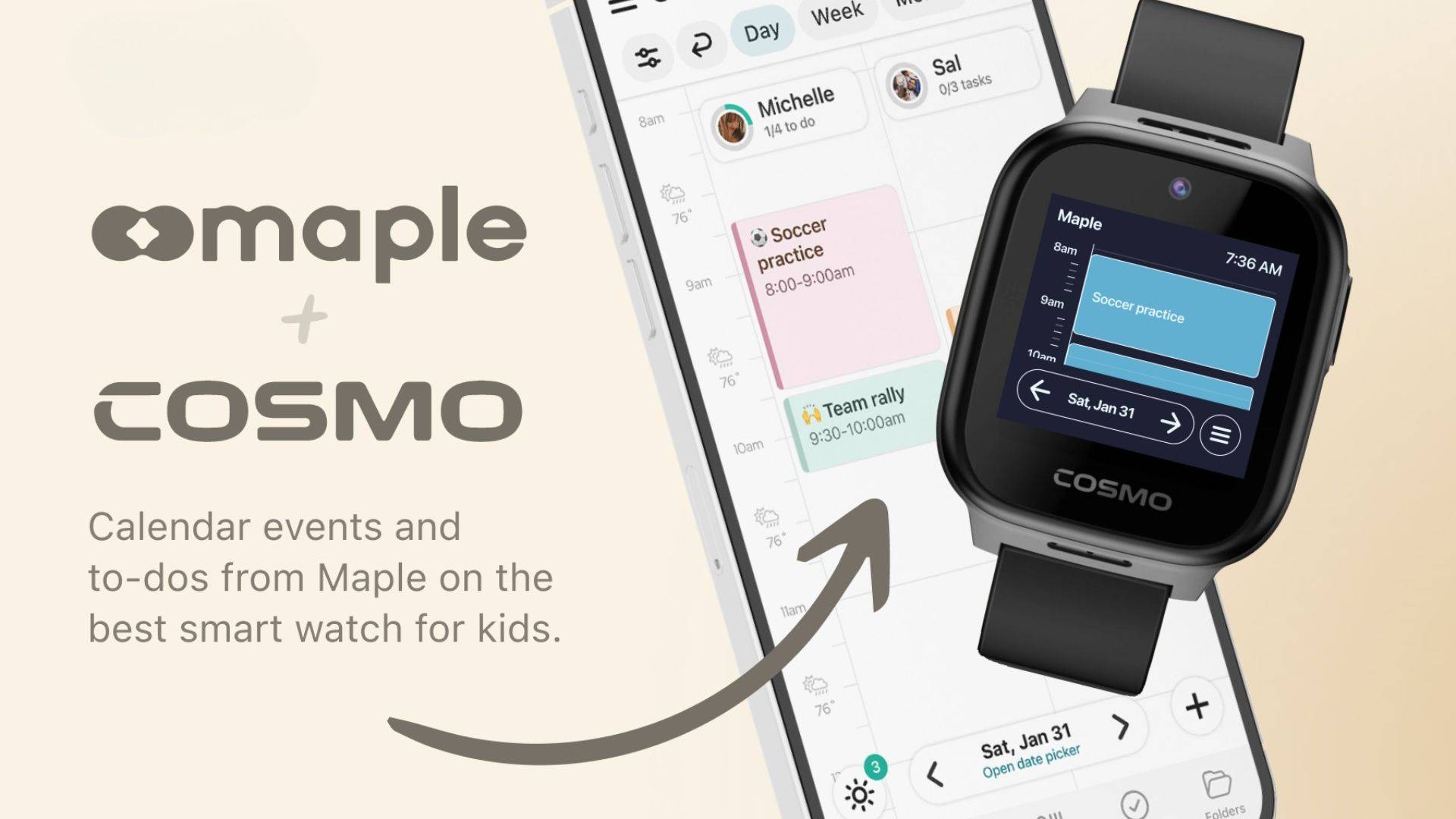
Here's how to get up and running with the Maple family scheduling app on your Cosmo JrTrack Kids Smart Watch!
STEP ONE
Sign up with Maple
A Maple account is required to use the app with JrTrack.

Sign up / Sign In
You'll need a Maple account to use the app on JrTrack. If you don't have one yet, you can sign up for one below!
STEP TWO
Download the watch App
The all-new Maple JrTrack app is available for download in the app station.
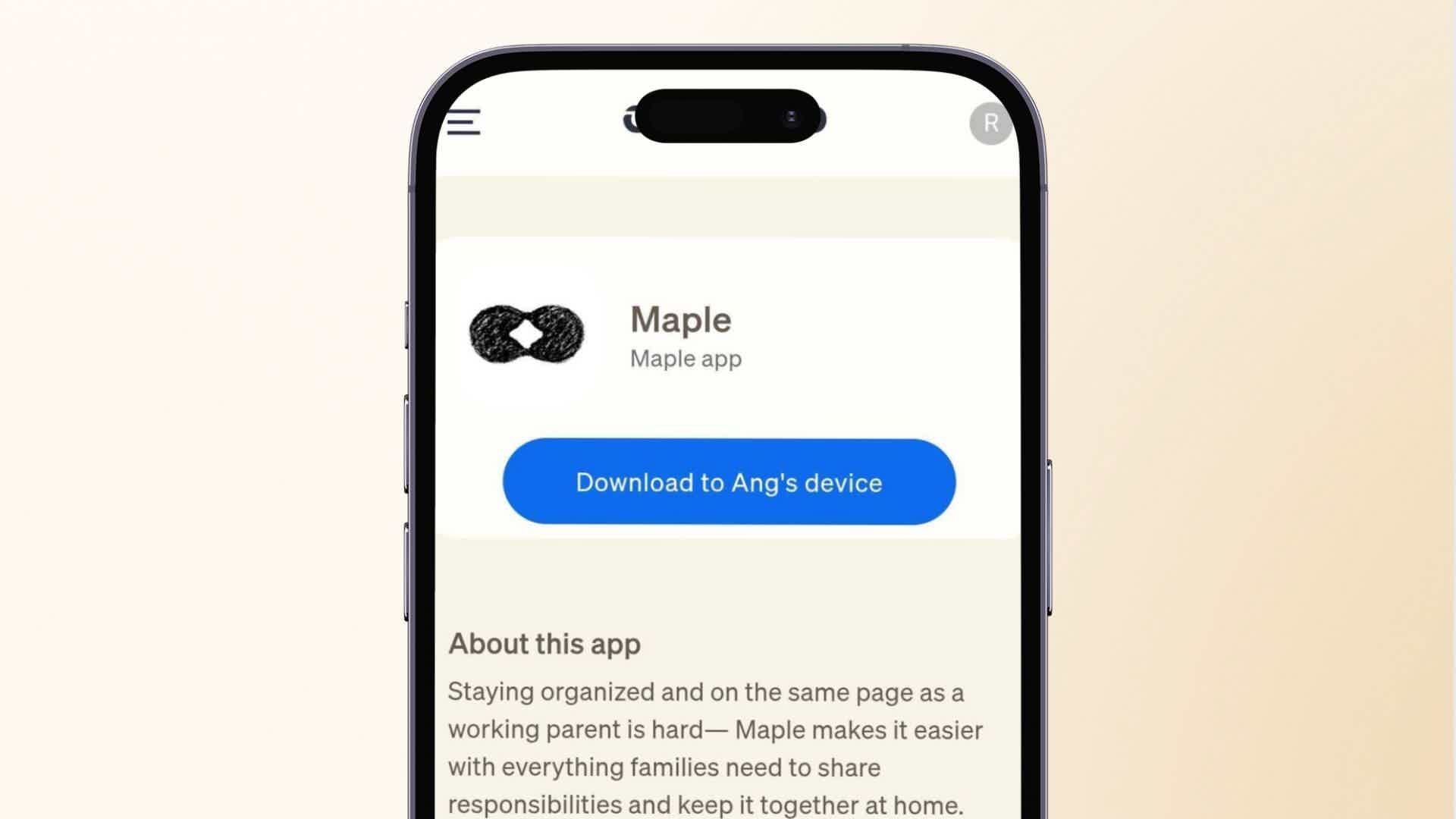
- Access the App Station in the Cosmo Parent Portal.
- Under the “Productivity Section”, locate the Maple app.
- To download the app, you will be prompted to log in using your Maple account.
Note: If you want to use a different Maple account after installing the app, you will need to uninstall the app and re-download to log in.
If re-downloading the app automatically logs the user with the same Maple login, you may need to log out from the Maple sites on the same device to clear login information (or clear cache).
STEP THREE
Using the app
Now it's easier than ever to stay in sync!
Select a profile
After the app is downloaded on the Jr Track, open the app to select the child you want to view.
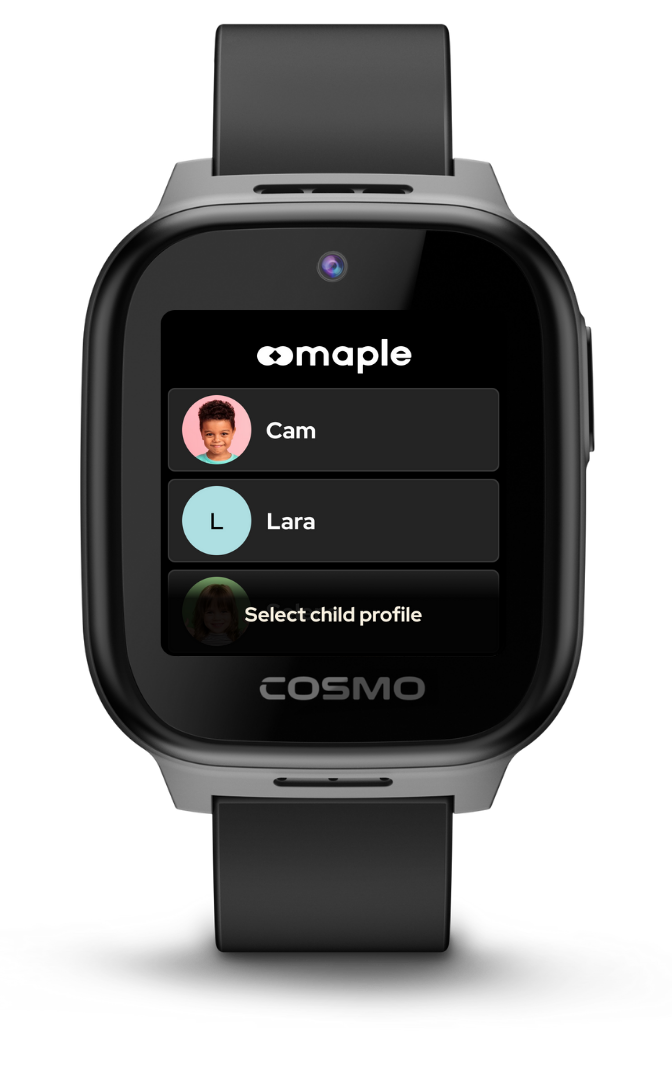
Note: After a child is selected, if you want to change to another child, you must uninstall the app via App Station and reinstall the app.
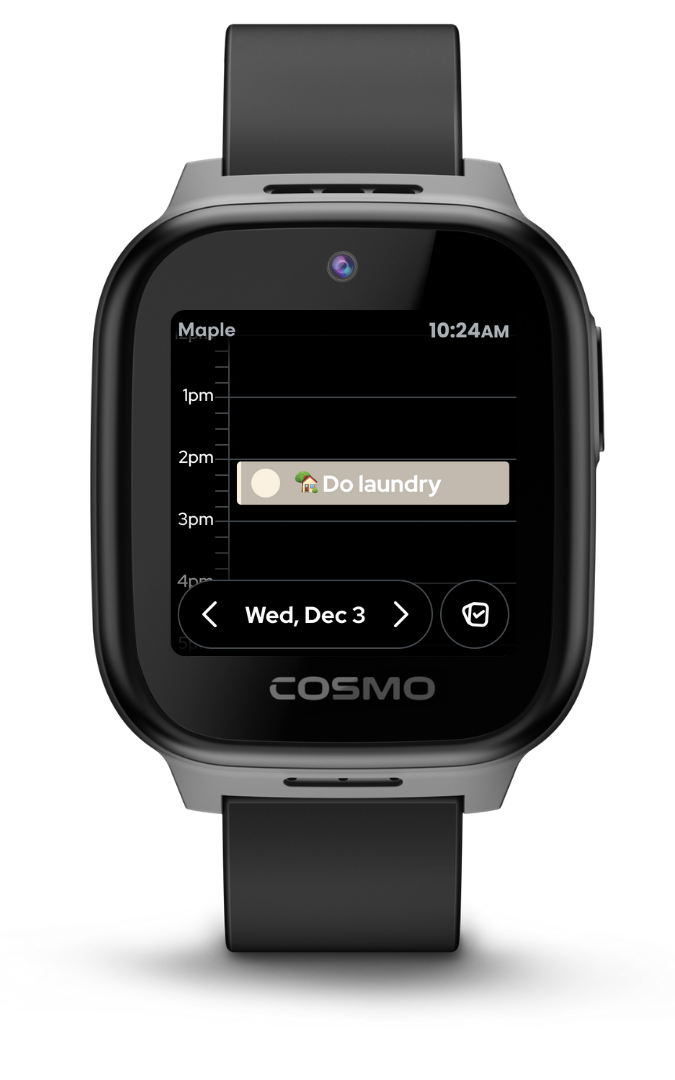
View the schedule
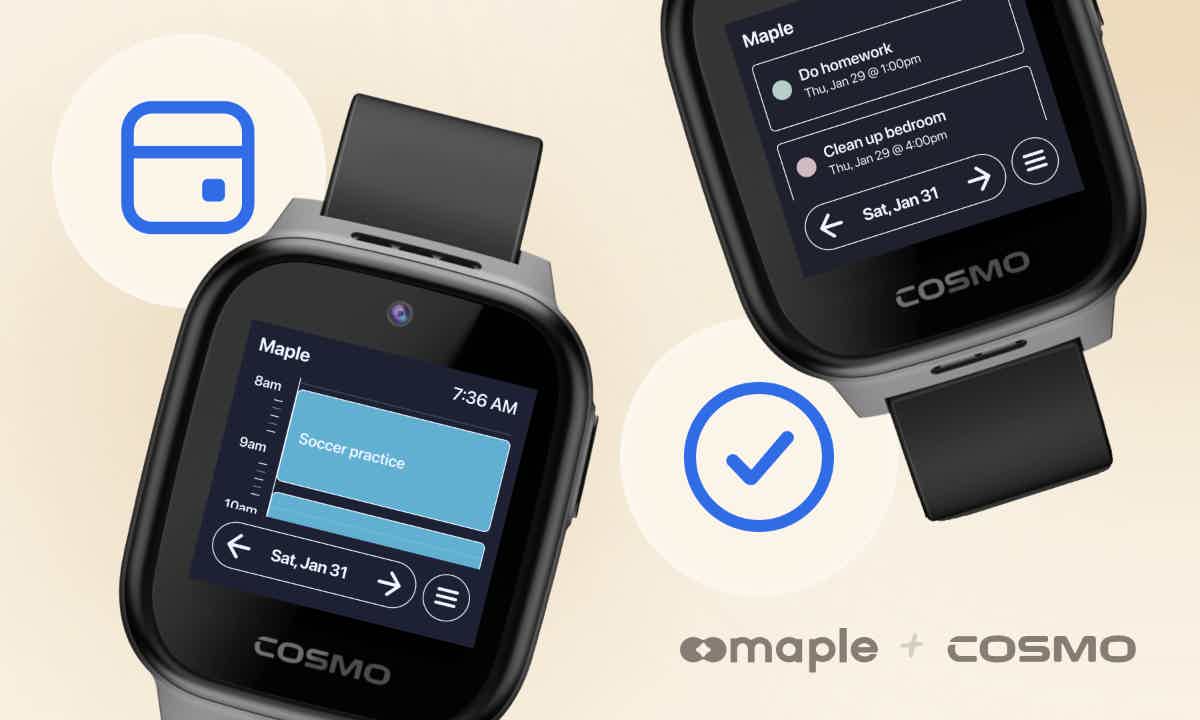
Default view is the calendar view where you can scroll to see the child’s schedule.
Note: All entries to the calendar are done on the Maple mobile app by the parents. Child cannot add their entries from the app.
Switch views
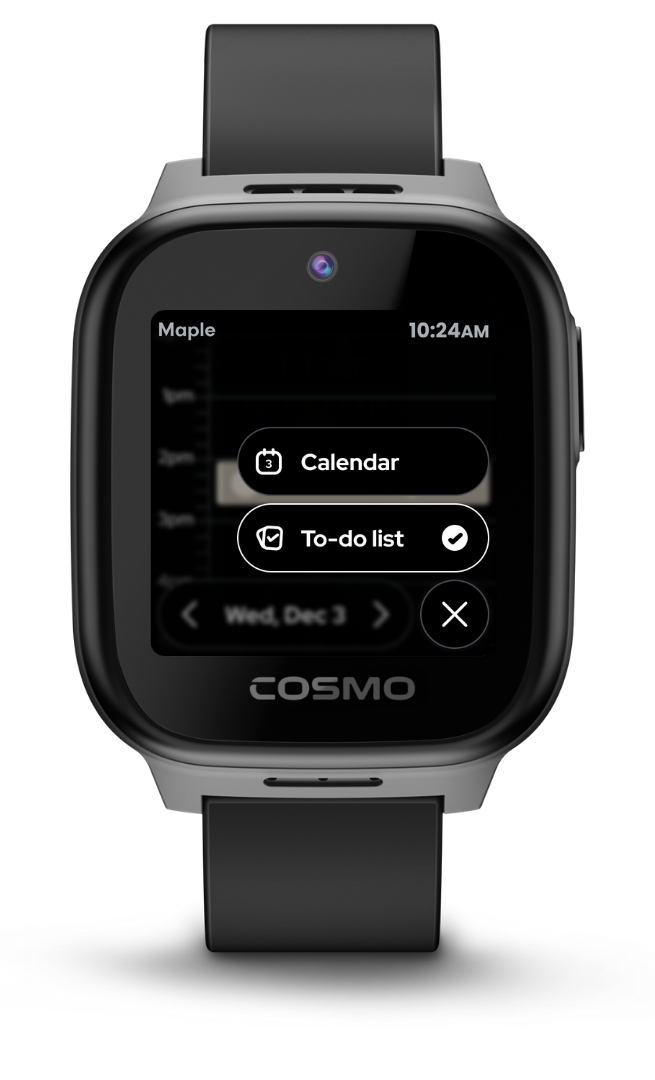
Tap the hamburger icon in the bottom right corner to switch between the calendar and to-do list views.