


Quick Start Guide: Set Up Your JrTrack 5 SE
A step-by-step guide to getting your JrTrack 5 SE kids smart watch up and running with these six popular features.
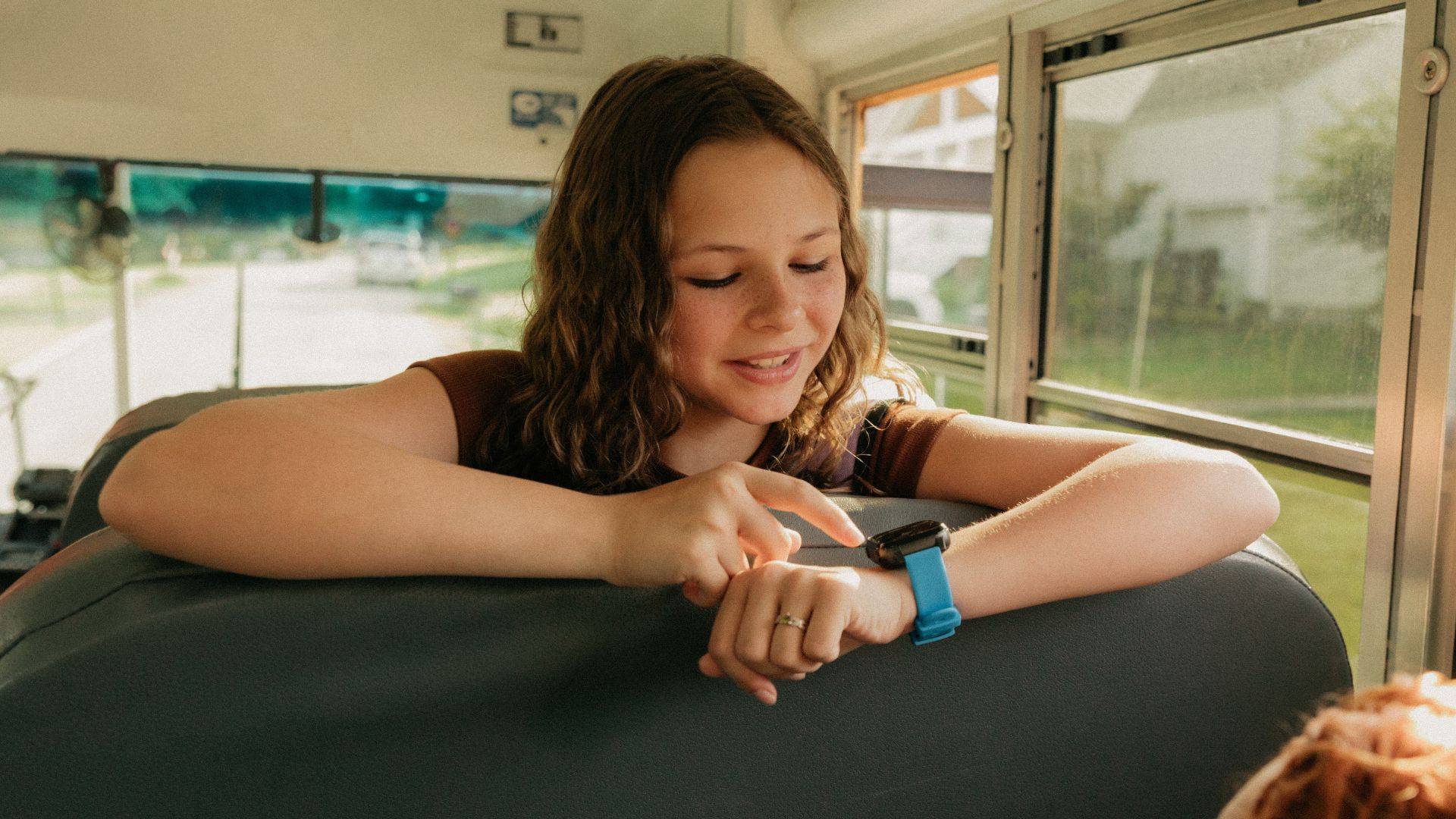
For a complete walkthrough of JrTrack setup & features, see our user guide.
ONE
Set your GPS settings
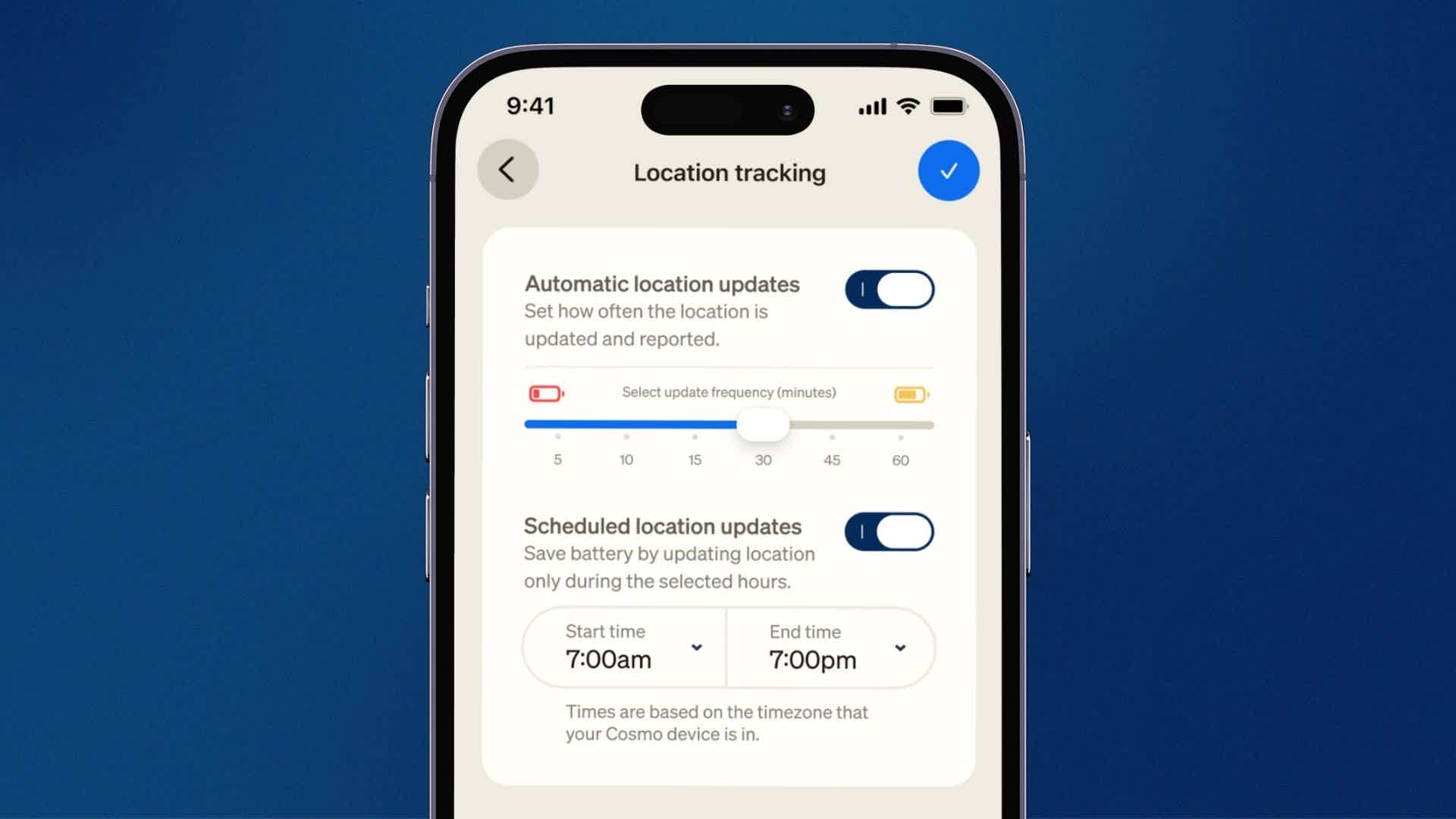
This setting controls how often location is refreshed while you are not using the app. By default, your JrTrack will update location every 30 minutes, but you can adjust this to give more frequent checks, or prioritize battery on the watch. Background refresh settings impact how quickly you'll receive a notification when your child enters or leaves a Geofenced routine you've set up.
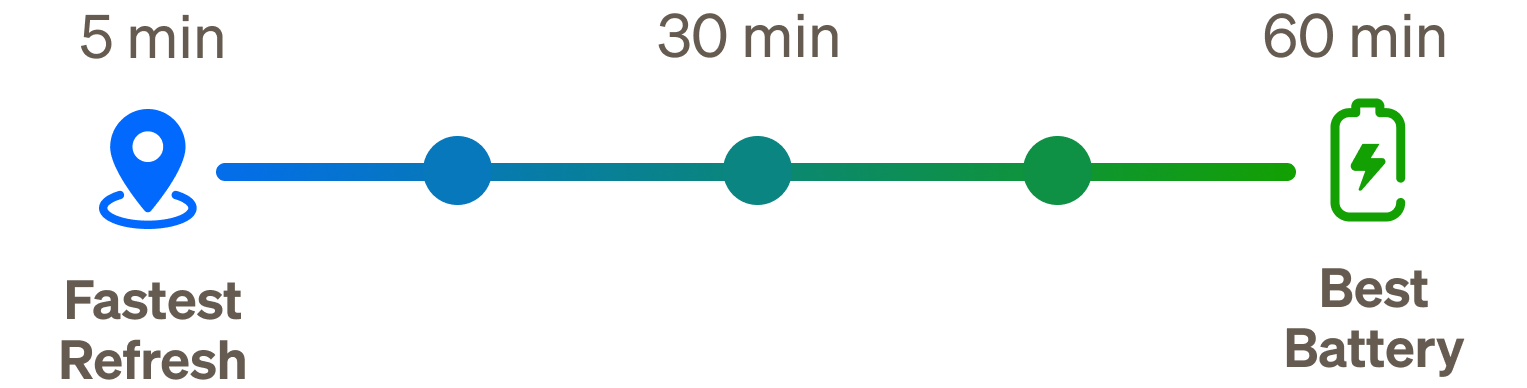
Keep in mind that this setting is only for when you are not using the app. You can still see their location anytime by tapping on their device on the map, or by tapping the "Start tracking" after selecting a device from the map screen, which enables Active Tracking. Active Tracking will update their location every 5-10 seconds for 15 minutes.
TWO
Explore the App Station
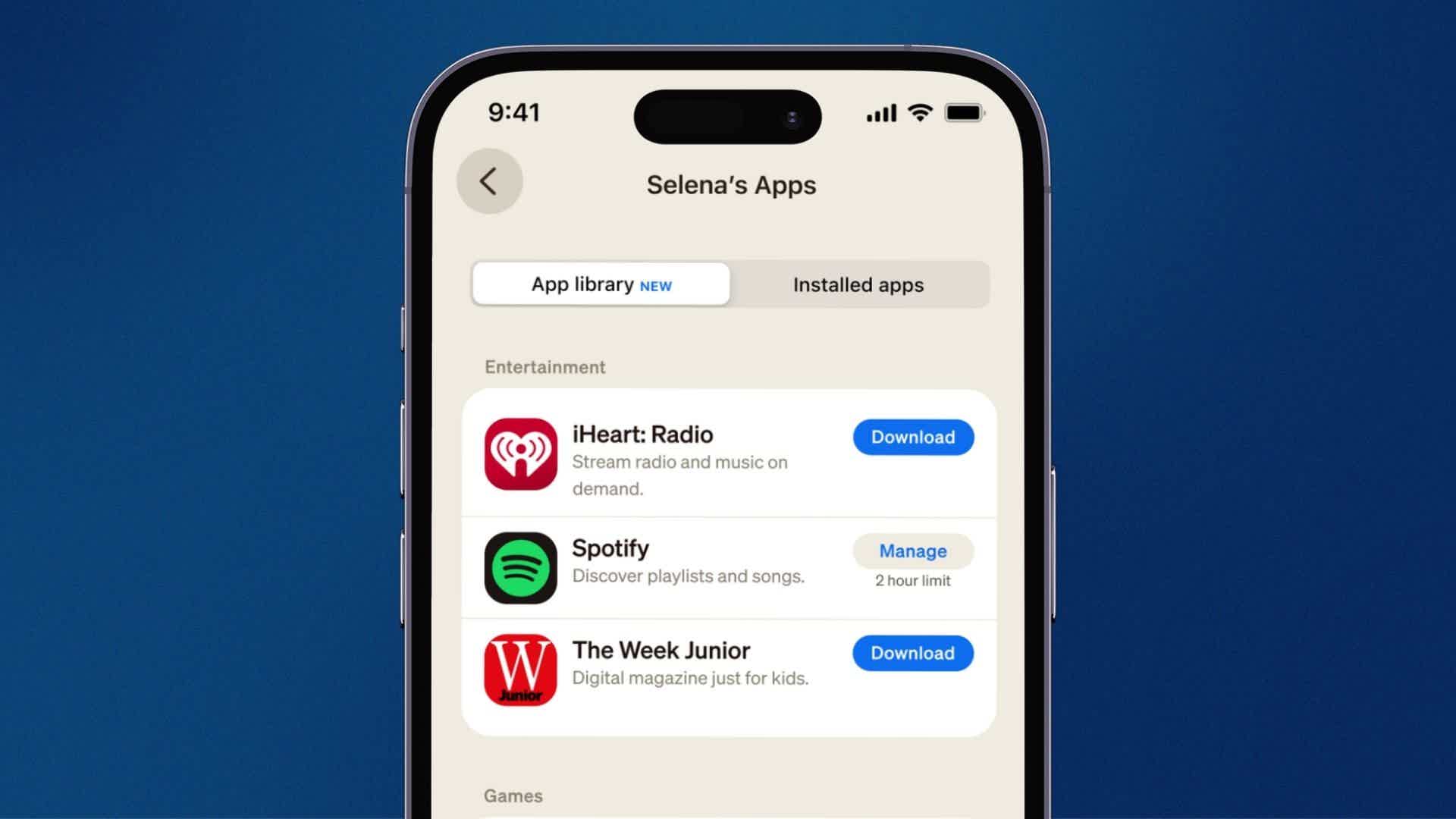
If you want to add some more functionality to JrTrack 5 SE, you can download some apps from our growing, pre-vetted and kid friendly app station! Educational games, music, and activities are all great options. Just tap on "App Station" under the features section once you've selected a device.
THREE
Add approved contacts
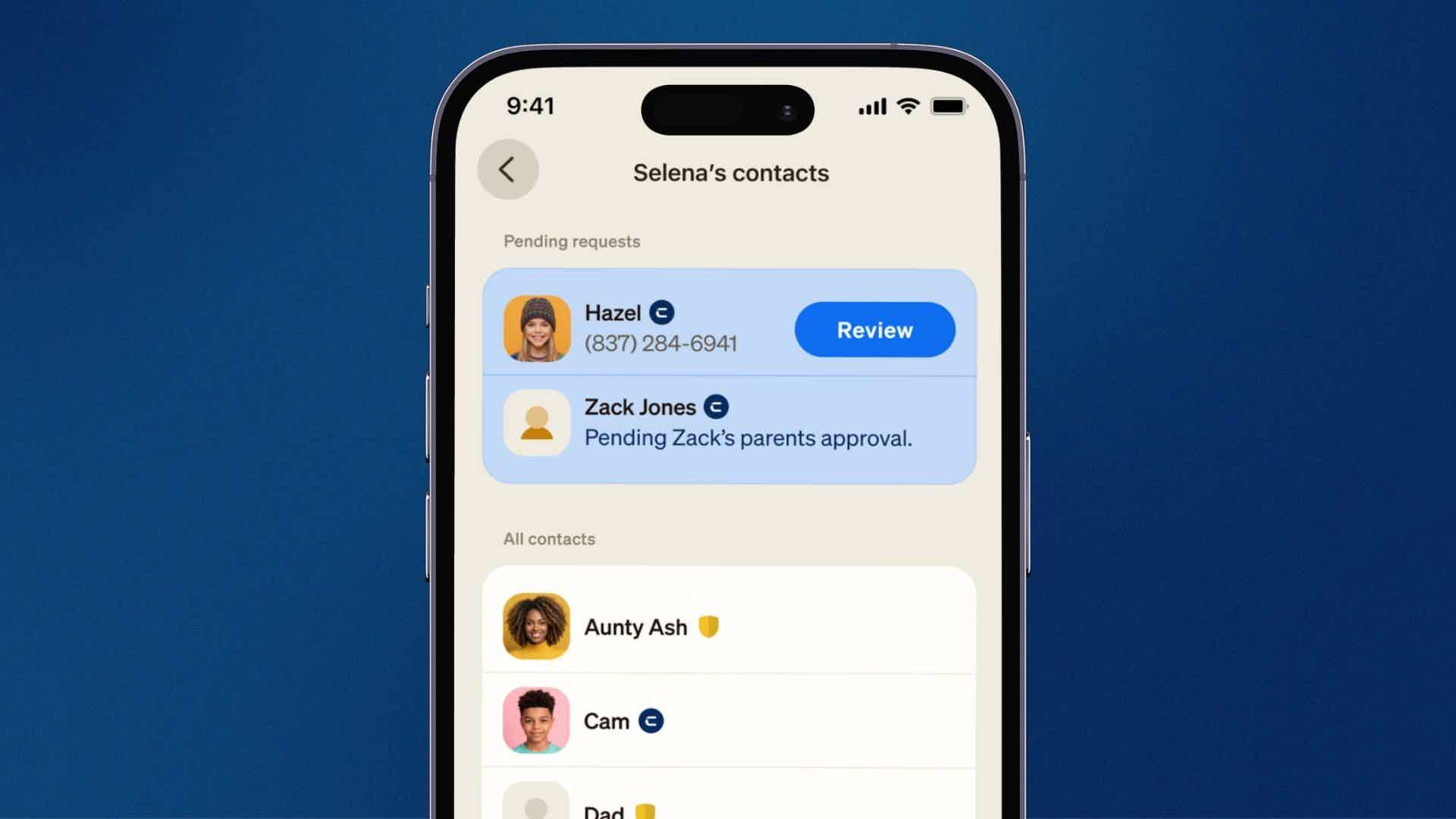
- Open the contacts menu from your child's profile to see everyone approved to reach them. Both primary parents and guardians can add and manage contacts, and you can add the same contact to more than one child at once.
- Adding a Guardian will send them an email invite to download the app & create an account.
- The Guardian must create an app account with the email you invited them with.
- Once they have accepted the invite, the new guardian will appear on the watch in the phone & messages apps for calling and texting.
- Contacts do not need to download the Mission Control app.
FOUR
Setup a Routine
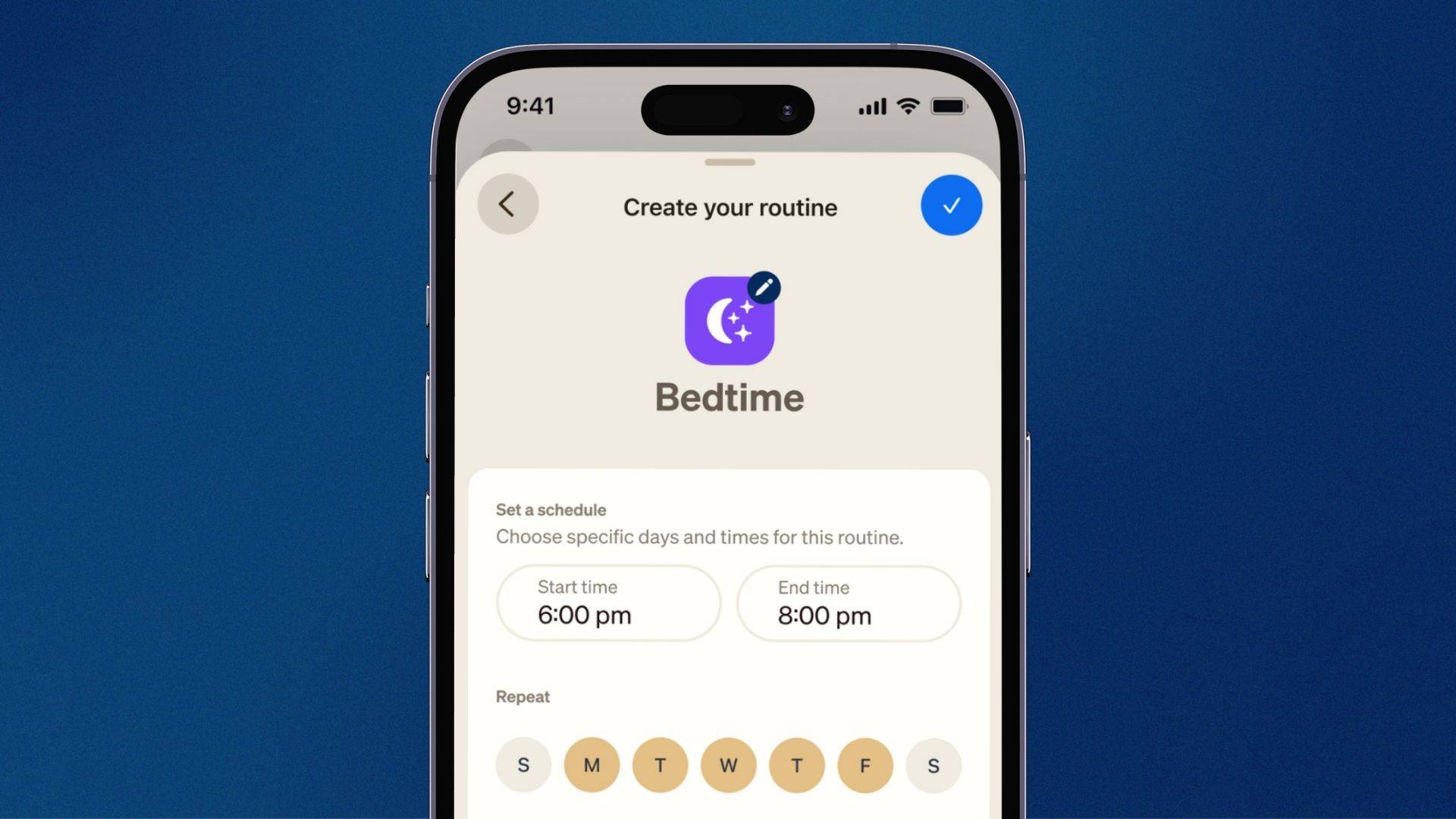
- Create a Routine from your child's profile, and apply it to more than one child at once. There are three kinds of Routines:
FIVE
Select safety settings
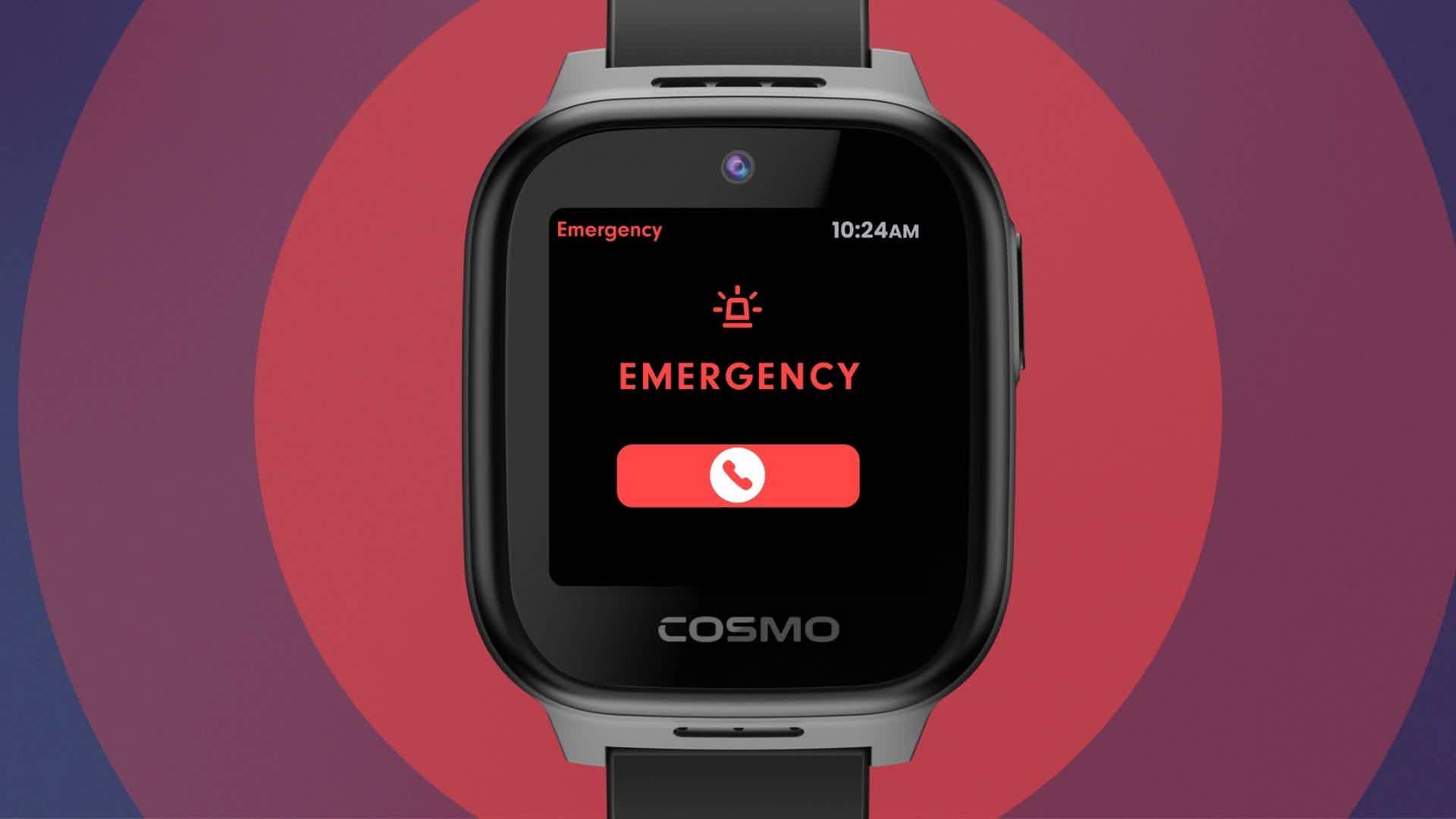
- Select a device from the map screen, and scroll down and tap "Safety features". Here you can show or hide the option to call 911. If you choose show, it will appear as an option in the phone app, below other contacts.
- 911 has a double-confirmation as well as a 5 second countdown to prevent accidental calls.
- SOS Mode allows your child to quickly and discreetly notify you in case they need to.
- To activate SOS, simply hold the power button on the side of the watch for 5 seconds.
- SOS Mode will automatically trigger an alert to the primary account holder's phone and begin live tracking for 15 minutes which you can check in the Mission Control app.
- While SOS Mode is enabled, all calls will automatically be picked up by the watch to allow you to hear what is happening, but your voice will be muted unless they turn up the volume on the watch. This is done to maintain secrecy in the event it is needed.
SIX
Customize pre-set messages
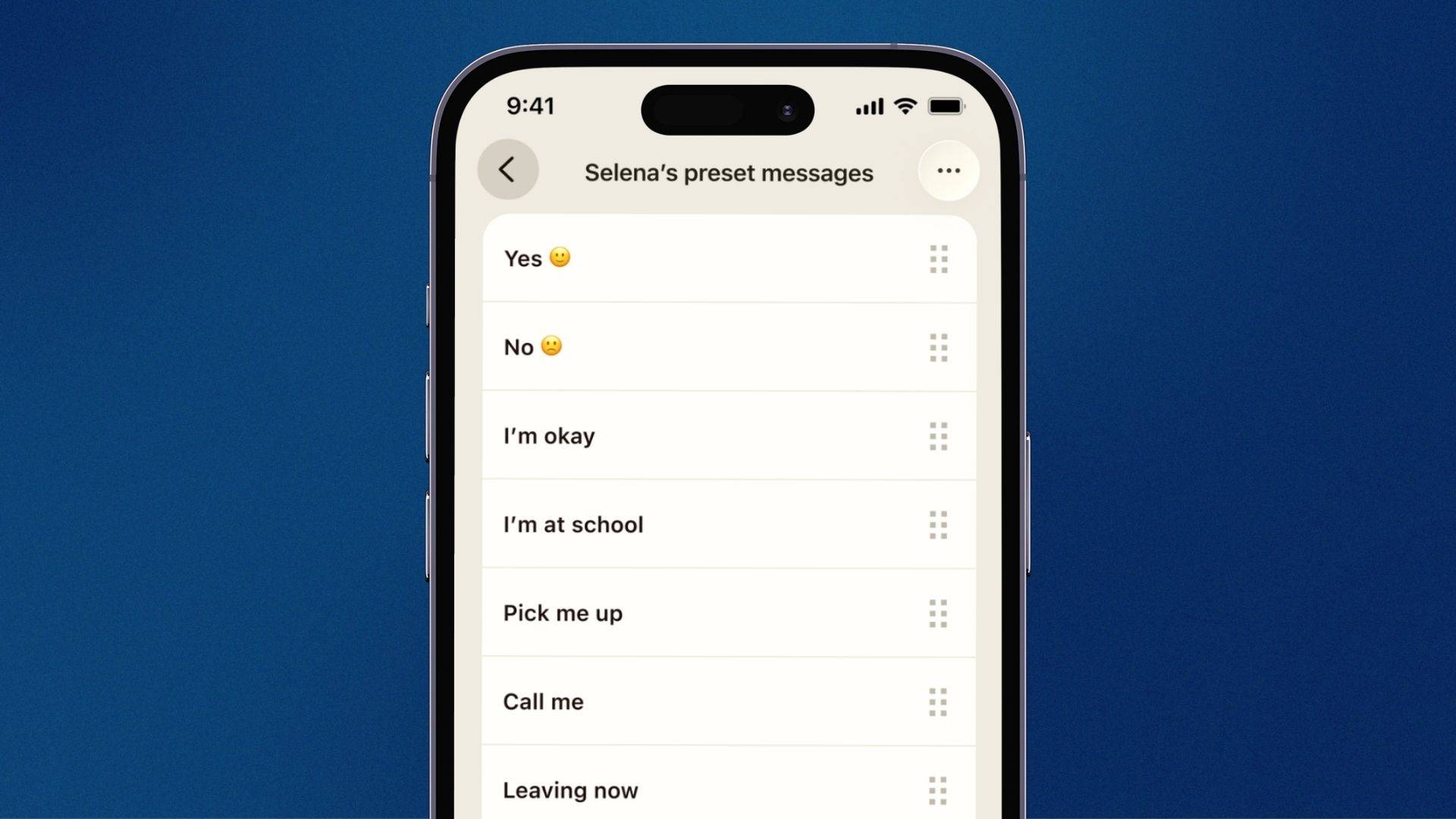
- In the parent app, select your device from the map screen. Then scroll down and tap "Preset Messages"
- Here you can edit any of the existing preset messages, or tap the blue plus to add your own. JrTrack can hold up to 20 preset messages.
- Tap "Save" to automatically populate your JrTrack's preset message list in the messaging app.